Working days, weekly offs and holidays
Updated 2026-11-07
What it is
Working days are the days of the week your company works. Any day you don't tick is a weekly off. Holidays are specific dates when the company, or one office, is closed. Together they tell PunchMe which days are off days.
Off days matter in four places:
- Block punches on off days can stop check-ins on them.
- Auto-absent never marks anyone absent on them.
- Work on them can earn comp-off.
- Leave can skip them when counting days.
Who uses it
- Owner: full access.
- Working days and Block punches on off days need
settings.edit. Out of the box, the HR role has it. Office Manager and Office HR roles don't. - Holidays need
leaves.manage. HR, Office Manager and Office HR roles all have it. - Employees see "Day off" on the app's Home tab on a weekly off or holiday.
Where to find it
- Settings → Work policy → Working days: tick mon to sun.
- Settings → Work policy → Block punches on off days: a checkbox.
- Setup → Holidays: add, edit or delete holidays.
Click Save changes in the bar at the bottom of Settings. You can click see what changed to check before saving.
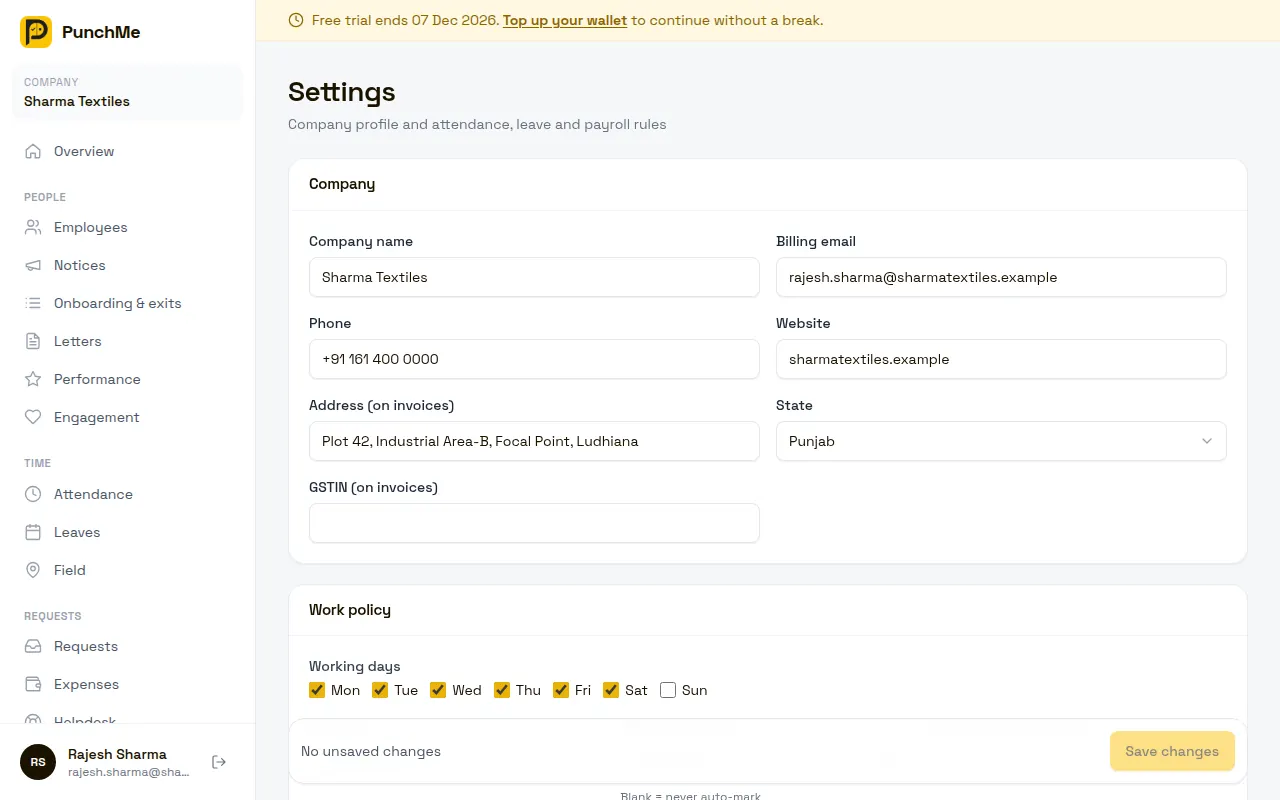
Working days
Tick each day your company works. The default is Monday to Friday. You must keep at least one day ticked.
Working days are company-wide. They apply to every office and every employee.
Office days and work-from-home days are a different thing. They decide where a working day is worked, not whether it is worked. See Geofence and GPS.
Holidays
Each holiday has:
| Field | What it does |
|---|---|
| Name | For example "Diwali" |
| Date | The date of the holiday |
| Only for office | Leave blank for all offices. Pick an office to make it a holiday only for that office |
A holiday for one office applies to employees whose home office is that office. It is based on the employee's home office, not where they punch.
You can't add two holidays with the same name on the same date. Holidays are listed by date. There is no bulk import or ready-made holiday list; add each one.
Block punches on off days
Turning it on or off
Settings → Work policy → Block punches on off days. It is on by default.
What happens when it's on
On a weekly off or a holiday, check-in is refused:
- Weekly off: "Today is not a working day"
- Holiday: "Today is a holiday — punching is disabled"
This applies to the phone app, offline punches and kiosks. On the phone, the Home tab shows Day off and the check-in button is greyed out.
Check-out is still allowed. Someone who checked in before midnight on a working day can check out on the off day that follows. A night shift running from Friday into Saturday still ends cleanly.
What happens when it's off
Employees can check in on off days like any other day. The day gets a present or late status as usual. If comp-off is on, the work can earn comp-off. See Overtime and comp-off.
Turn it off if some staff regularly work weekends or holidays, for example in retail or on sites.
Changing it midway
- Changing working days applies from the next punch and the next auto-absent run. Past records don't change.
- Adding a holiday for today after people have checked in doesn't touch their records. If auto-absent already ran today and marked people absent, those marks stay. Edit the days or use corrections.
- Adding a holiday in advance is the safe way. On the day, punches are blocked (if blocking is on) and nobody is marked absent.
- Deleting a holiday doesn't change any record already saved.
- Turning blocking on mid-day stops new check-ins. Anyone already checked in can still check out.
Limits and edge cases
- Working days are company-wide. You can't set different weekly offs per office or per employee. If one office works Saturdays, tick Saturday and add office-specific holidays where needed, or turn blocking off.
- There is no alternate-Saturday rule (such as 2nd and 4th Saturday off). Add those Saturdays as holidays.
- Holidays for one office follow the employee's home office. An employee with no home office only gets company-wide holidays.
- The app shows "Day off" but the button stays visible. If blocking is on, the punch is refused by the server with the message above.
- Off-day check uses the local date at the employee's home office.
Related
- Attendance overview
- Punching
- Absent and half day
- Overtime and comp-off
- Leaves
- Geofence and GPS
- Company and offices
Common questions
Our office works Monday to Saturday. What do I tick?
Tick mon to sat and leave sun unticked. Sunday becomes the weekly off.
Can one office have a holiday the other doesn't?
Yes. When you add the holiday, pick the office in Only for office. Employees whose home office is that office get the holiday.
A few people must work on a holiday. What do I do?
Turn off Block punches on off days so they can check in. Everyone else simply doesn't punch, and they won't be marked absent on a holiday.
Will employees be marked absent on a weekly off?
No. Auto-absent skips weekly offs and holidays, whether blocking is on or off.
Why can someone still check out on a holiday?
Blocking stops check-in only. This lets overnight shifts finish and lets anyone who checked in before the change close their day.