Attendance overview
Updated 2026-11-07
What it is
Attendance in PunchMe is one record per employee per day. The record holds the check-in time, the check-out time, a status, and the result of every check the punch went through. Each rule in this section decides one of three things: whether a punch is accepted, what status the day gets, or whether someone should review it.
This page is the map. Each topic has its own page with the full detail.
The daily record
Each employee gets at most one record per day. The day is the local date at the employee's home office, or the company timezone if the office has none.
| Status | How it is set |
|---|---|
| Present | Checked in on time |
| Late | Checked in after shift start plus grace minutes |
| Half day | At check-out, worked fewer hours than Half day below (hours) |
| Absent | No punch by Mark absent after, or a flagged punch was rejected |
| On leave | Approved leave on a day with no punch |
| Holiday | Set by hand when someone edits the day |
Present and late come from Shifts. Half day and absent are covered in Absent and half day.
How a day flows
- The employee taps Check in in the employee app, or uses an office kiosk.
- PunchMe runs its checks: device, face, GPS and geofence. See Punching.
- Your punch rules decide what happens to each problem found: block, flag or allow.
- If the punch is accepted, the record is saved as present or late.
- At check-out, the hours worked decide if the day stays as it is or becomes a half day.
- If anything was flagged, the record waits in Flagged punches until someone keeps or rejects it.
- If someone forgets to check out, PunchMe closes the record by itself after 20 hours.
Where each setting lives
| What | Where | Page |
|---|---|---|
| Shift times and grace minutes | Setup → Shifts | Shifts |
| Working days, block on off days | Settings → Work policy | Working days and holidays |
| Holidays | Setup → Holidays | Working days and holidays |
| Office geofence | Setup → Offices | Geofence and GPS |
| GPS accuracy limit | Settings → Punch verification | Geofence and GPS |
| Require face match, threshold | Settings → Punch verification | Face check |
| Block / flag / allow per rule | Settings → Punch verification | Punch rules |
| Review flagged punches | Attendance → Flagged punches | Flagged punches |
| Half day and auto-absent | Settings → Work policy | Absent and half day |
| Correction requests | Attendance → Corrections | Corrections |
Who uses it
- Owner: everything.
- Employees: punch from the app and see their own records.
- Dashboard users: depends on their role's permissions.
The permissions that matter here:
| Permission | Lets you |
|---|---|
attendance.view | See the Attendance page |
attendance.manage | Review flagged punches, decide corrections, edit days, manage kiosks |
settings.view / settings.edit | See or change Settings and offices |
shifts.create / shifts.edit | Add or change shifts |
leaves.manage | Add or change holidays |
employees.edit | Reset an employee's device or face |
Out of the box, the HR, Office Manager and Office HR roles all have attendance.view and attendance.manage. Only the Office Manager role also has settings.edit and shift editing. Check each role in Roles and permissions before you hand it out.
Pages in this section
- Punching: the full check-in and check-out flow, step by step.
- Shifts: start and end times, grace minutes, when someone is late.
- Working days and holidays: weekly offs, holidays per office, blocking punches on off days.
- Geofence and GPS: office radius or area, GPS accuracy, fake GPS, office and work-from-home days.
- Face check: enrolment, liveness, match threshold, privacy.
- Punch rules: every rule in Punch verification and its default.
- Flagged punches: how review works.
Related topics outside this section: Corrections, Absent and half day, Offline punch, Overtime and comp-off, Kiosk, Device binding.
A good starting setup
If you are not sure where to start, this suits most offices:
- One shift per timing, with 10 to 15 grace minutes.
- Tick the days your office is open in Working days. Keep Block punches on off days on.
- A radius geofence of 100 to 200 m around the office entrance.
- GPS accuracy limit (m) at 75.
- Require face match on if staff could punch for each other.
- Leave the punch rules at their defaults. Check Flagged punches daily for the first two weeks, then tighten or relax rules based on what you see.
Common questions
Where do I see today's attendance?
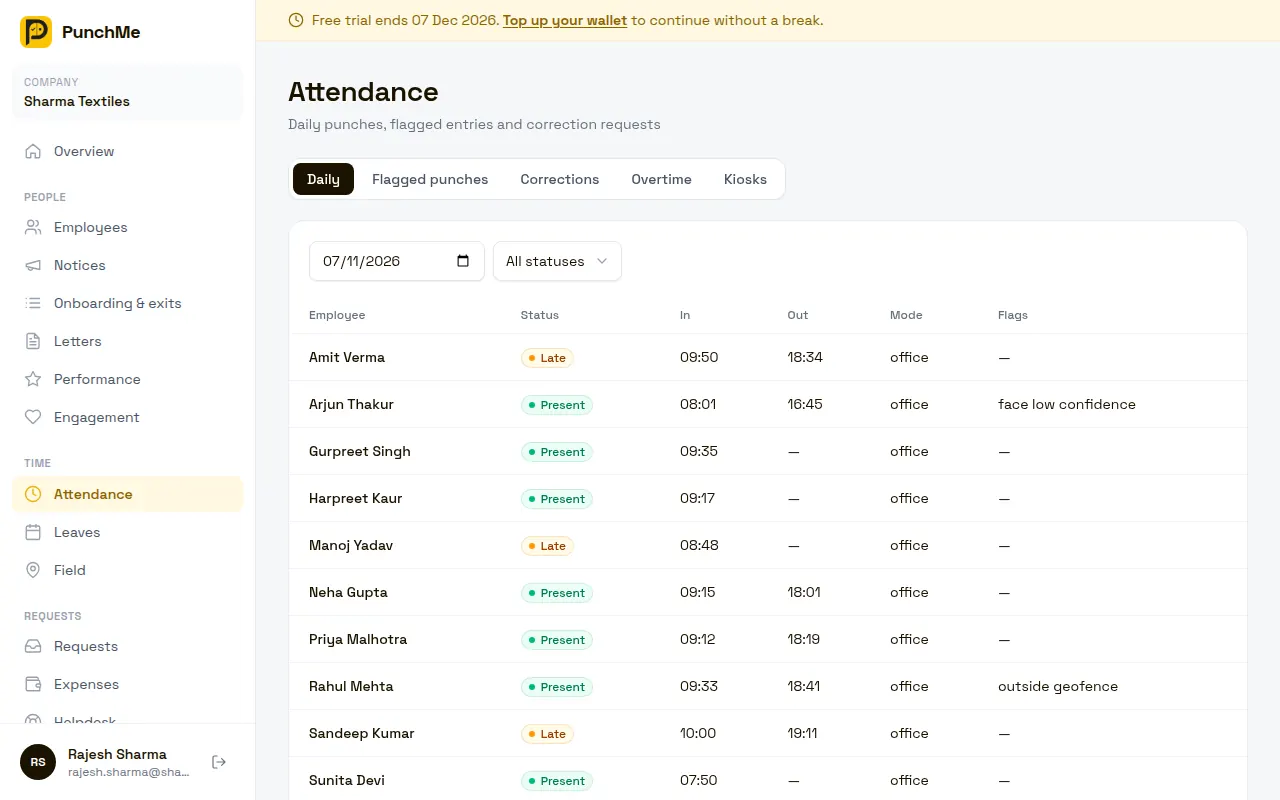
Open Attendance. The Daily tab shows every record for the chosen date with status, in and out times, office or WFH mode, and any flags. You can filter by status.
Can an employee punch more than once a day?
No. There is one check-in and one check-out per day. A second check-in on the same day is refused with "You've already checked in today".
Who decides if a punch is accepted, the phone or the server?
The server. The phone collects the location and the face data. PunchMe's server checks them, uses its own clock for the punch time, and applies your rules. Changing the phone's clock does not change the punch time.
What happens if someone forgets to check out?
After 20 hours the record is closed automatically. The check-out is set to the shift end time, or 23:59:59 if the employee has no shift. The status is not changed to half day. See Shifts.
Can I change a day's record by hand?
Yes. Users with attendance.manage can edit a day or approve a correction request. See Corrections.