Company profile, offices and geofences
Updated 2026-11-07
What it is
Your company profile is the name, address, state and GSTIN that PunchMe prints on your GST invoices and uses across the dashboard. Offices are the places your staff work from. Each office has a geofence, a boundary on the map that a check-in must be inside on office days.
Company-wide settings, such as working days, timezone and punch verification, live on the Settings page and apply to every office.
Who uses it
| Task | Permission needed |
|---|---|
| See the Setup and Settings pages | settings.view |
| Edit company details and settings | settings.edit |
| Add, edit or delete offices | settings.edit |
| Add or edit shifts | shifts.create or shifts.edit |
| Add or edit departments | departments.create or departments.edit |
| Add or edit designations | designations.create or designations.edit |
| Add or edit leave types and holidays | leaves.manage |
The owner can do all of these. Out of the box, the Office Manager role has settings.edit. The HR and Office HR roles don't, so they can't see Setup or Settings. See Roles and permissions.
Offices and settings are company-wide. A team member limited to one office can still edit every office and every company setting if their role has
settings.edit. Give that permission only to people you trust with the whole company.
Where to find it
- Settings → Company: company name, billing email, phone, website, address, state and GSTIN.
- Setup → Offices: the list of offices, with Add office, Edit and Delete.
- Setup → Shifts / Departments / Designations / Leave types / Holidays: the rest of your company structure.
- Settings: work policy, punch verification, leaves, payroll, employee self-service and the help bot.
The setup wizard fills in the company details, your first office and your first shift. See Getting started.
Company details
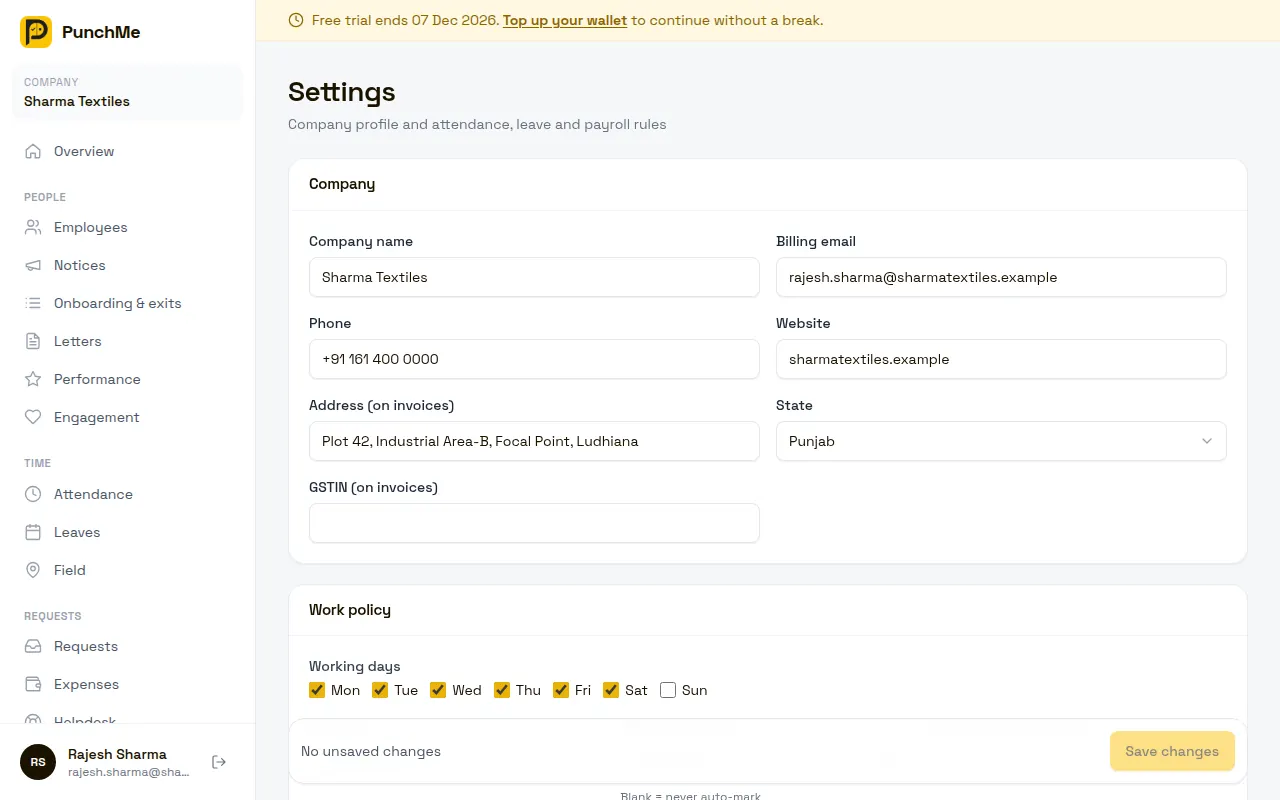
| Field | Required | Where it's used |
|---|---|---|
| Company name | Yes | Dashboard, app, invoices, letters, payslips |
| Billing email | No | Company contact on record |
| Phone | No | Company contact on record |
| Website | No | Company contact on record |
| Address (on invoices) | Required to finish setup | "Bill to" address on GST invoices |
| State | Required to finish setup | Place of supply on GST invoices; decides CGST + SGST or IGST |
| GSTIN (on invoices) | No | Printed on GST invoices so you can claim input tax credit |
PunchMe checks the GSTIN format (15 characters, for example 09ABCDE1234F1Z5) before saving. It doesn't check the GSTIN with the GST portal, so type it carefully.
Why state matters: Hostspica, which issues PunchMe invoices, is registered in Uttar Pradesh. If your state is Uttar Pradesh, invoices show CGST 9% + SGST 9%. For any other state, or if the state is blank, they show IGST 18%. See Billing and wallet.
Offices and geofences
An office has a name, an address, an optional timezone and a geofence. You draw the geofence in one of two ways.
| Mode | How to set it | Limits | Best for |
|---|---|---|---|
| Radius | Click the map or drag the pin to the office entrance, then set Allowed distance | 20 m to 1,000 m on the slider (default 100 m) | Most offices. 100–200 m suits most buildings. |
| Custom area | Click around the office to draw its boundary. Use Undo or Clear to fix points. | At least 3 points, at most 200 | Campuses, factories, odd-shaped plots |
To find the place quickly, type in Search address or landmark (searches within India) or click the location button to use your current position.
Timezone is optional. Leave it blank to use the company timezone from Settings. Set it for an office in another country, for example Asia/Dubai; that office's late marks, absent cut-off and day boundaries then use it.
Click Save office when done.
How offices are used at punch time
- Office days only. PunchMe checks the geofence on check-in on office days. On work-from-home days there's no geofence check. Check-out never has a geofence check.
- Which offices count. An employee can check in at their home office or any of their extra offices. If an employee has no home office and no extra offices, any of your offices counts.
- Outside the boundary. What happens depends on the Outside office geofence rule in Settings → Punch verification. The default is Block the punch. See Punch rules.
- GPS accuracy. PunchMe allows for the phone's reported GPS accuracy when deciding if a punch is inside. See Geofence and GPS.
Company-wide settings
Settings is one long form with a single Save changes bar at the bottom. Click see what changed to review your edits before saving, or Discard to undo them. If you try to leave with unsaved changes, the browser asks first.
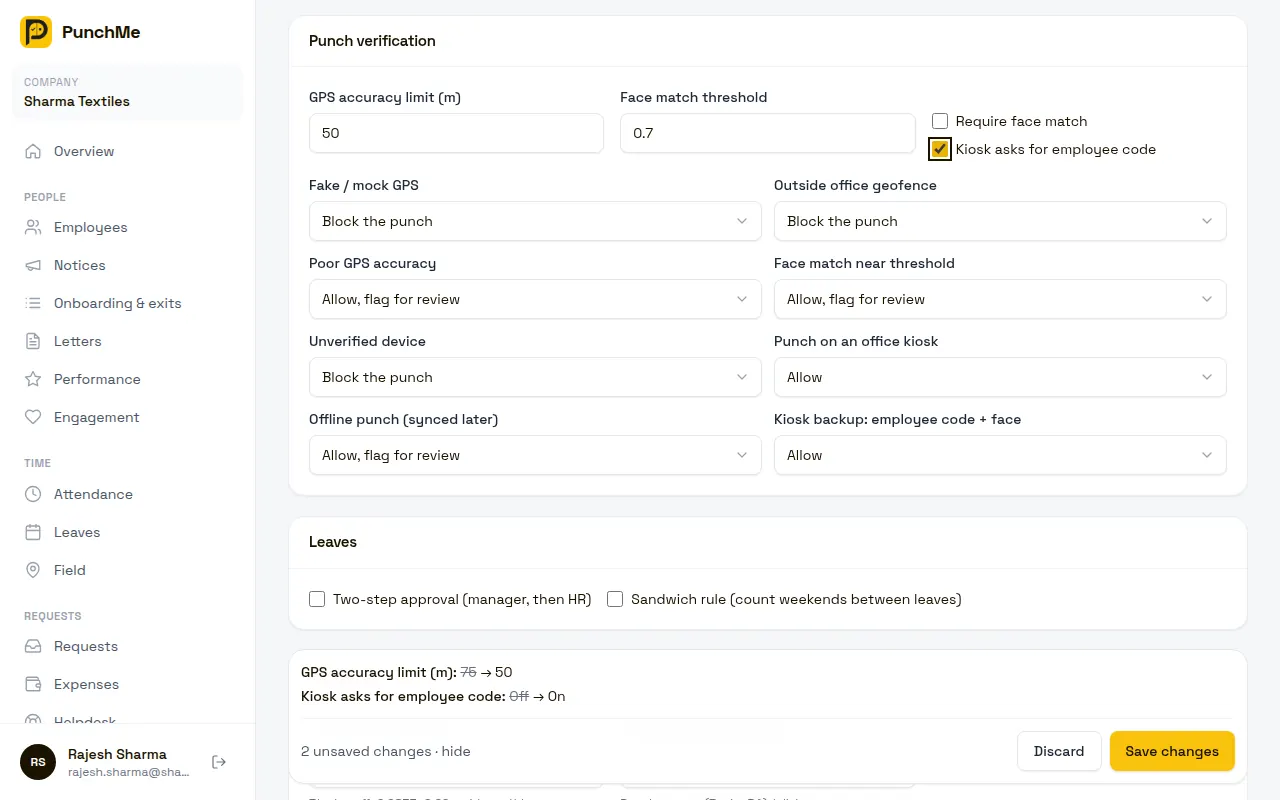
| Card | What's in it | Details |
|---|---|---|
| Company | Name, contacts, address, state, GSTIN | This page |
| Work policy | Working days, Work style (and Office days for Hybrid), Timezone, Mark absent after, Half day below (hours), Block punches on off days, Allow correction requests | Attendance rules, Working days and holidays |
| Punch verification | GPS accuracy limit (m), Face match threshold, Require face match, Kiosk asks for employee code, and block / flag / allow for each risky punch | Punch rules, Face check |
| Leaves | Two-step approval, sandwich rule | Leaves |
| Payroll | Statutory bonus rate, leave encashment divisor, maker-checker, gratuity provision, Basic+DA ≥ 50% check | Payroll |
| Employee self-service | What employees can edit in the app, and whether HR must approve | Employee profile |
| Help bot | HR contact and custom questions for the employee app's help bot | Employee app |
Team members with only settings.view see the page read-only, without the Save bar.
Default values for a new company
| Setting | Default |
|---|---|
| Working days | Monday to Friday |
| Timezone | Asia/Kolkata |
| Mark absent after | 20:00 |
| Half day below (hours) | 4 |
| Block punches on off days | On |
| Allow correction requests | On |
| GPS accuracy limit (m) | 75 |
| Require face match | Off (on if you chose Remote only) |
| Face match threshold | 0.7 |
| Kiosk asks for employee code | Off |
Turning it on or off
Offices aren't switched on or off. You add or delete them. If you choose Remote only in the setup wizard, you don't need an office at all, and no geofence is checked.
What happens when you add, edit or delete an office
| Action | What happens |
|---|---|
| Add an office | It appears in office pickers (employees, shifts, departments, holidays, kiosks). Employees can check in there only if it's their home or extra office, or they have no office assigned. |
| Edit the boundary | Applies from the next check-in. Past punches keep the result they got. |
| Rename | The new name shows everywhere straight away, including on past records. |
| Delete | Refused while any active employee has it as home or extra office, or an active kiosk is there. Otherwise the office disappears from lists and pickers. Past attendance keeps its record. |
Changing it midway
- Company name, address, state or GSTIN. Invoices already issued keep the details they were issued with. The new details apply from the next monthly charge.
- Moving a geofence. Takes effect from the next check-in. Anyone already checked in stays checked in. Punches already flagged stay flagged.
- Timezone. All new punches, the absent cut-off and reminders use the new timezone. Past records aren't moved. Pick from the suggestions or type the exact name, for example
Asia/KolkataorAsia/Dubai; a name that isn't a real timezone is refused. Offices with their own timezone keep it. - Work style. Settings → Work policy → Work style switches between Office only, Hybrid and Remote only. For Hybrid, tick the Office days; other working days are work-from-home with no geofence check. It applies from the next punch. An employee can override it on their Details tab (Work mode).
- Deleting an office with employees in it. Move those employees to another office (home and extra offices) and remove its kiosks first. Until then PunchMe refuses the delete and says how many employees or kiosks still use it.
Limits and edge cases
- Office names need at least 2 characters.
- A radius needs a pin. A custom area needs at least 3 points. Save office stays greyed out until the boundary is valid.
- The address search uses OpenStreetMap and covers India only. If your address isn't found, search a nearby landmark and drag the pin.
- An office without its own timezone uses the company timezone. Per-office punch rules aren't available in the dashboard.
- An employee set to Hybrid uses the company's office days.
- There's no limit on the number of offices.
Related
Common questions
What radius should I use?
100–200 m for most offices. Smaller radii cause false "outside geofence" errors, because phone GPS indoors is often off by 20–50 m. For a large campus, draw a Custom area instead.
Can one employee punch at two offices?
Yes. Set their home office, then add the other office as an extra office on their profile. They can check in at either.
I added my GSTIN after some invoices were issued. Can I get them reissued?
Invoices keep the details they were issued with. Your GSTIN appears from the next monthly charge. For earlier invoices, email support@punchme.online.
Why does the invoice show IGST when we're in Uttar Pradesh?
The State field in Settings → Company is probably blank or set to another state. Set it to Uttar Pradesh. Future invoices will show CGST + SGST.
Can a branch manager edit only their branch's settings?
No. Settings and offices are company-wide. A role with settings.edit can change them for every office, even if the role is limited to one office.
Do remote-only companies need an office?
No. If you chose Remote only in the setup wizard, the office step is skipped, and punches are verified by face match instead of location.