Employee profile, status and self-service
Updated 2026-11-07
What it is
The employee profile is the single record PunchMe keeps for each person: job details, personal details, statutory IDs, bank account, documents and company assets. Attendance, leave, payroll and letters all read from it, so keeping it complete saves work later.
Each record has two layers:
- Details: job data you manage, such as name, email, employee code, department, shift, office, joining date and status.
- Profile: personal, statutory and bank details. Employees can fill these in themselves from the app if you allow it.
Who uses it
| Task | Permission needed |
|---|---|
| See employees and their profiles | employees.view |
| Add employees or import a CSV | employees.create |
| Edit details, profile sections, status, archive, reset device or face | employees.edit |
| Approve or reject profile change requests | employees.edit |
| See full PAN, UAN, ESI number and bank account | payroll.manage |
Roles with office or team scope only see and edit employees in their own office or department. See Roles and permissions.
Employees see and edit their own profile in the employee app.
Where to find it
- Dashboard: Employees, then click a name. The tabs are Details, Profile, Documents, Performance, Reviews, Assets, Onboarding and Letters (Letters needs
letters.manage). - Pending change requests: Requests, Profile changes tab.
- Self-service rules: Settings, Employee self-service card.
- Employee app: Profile tab, under Your details.
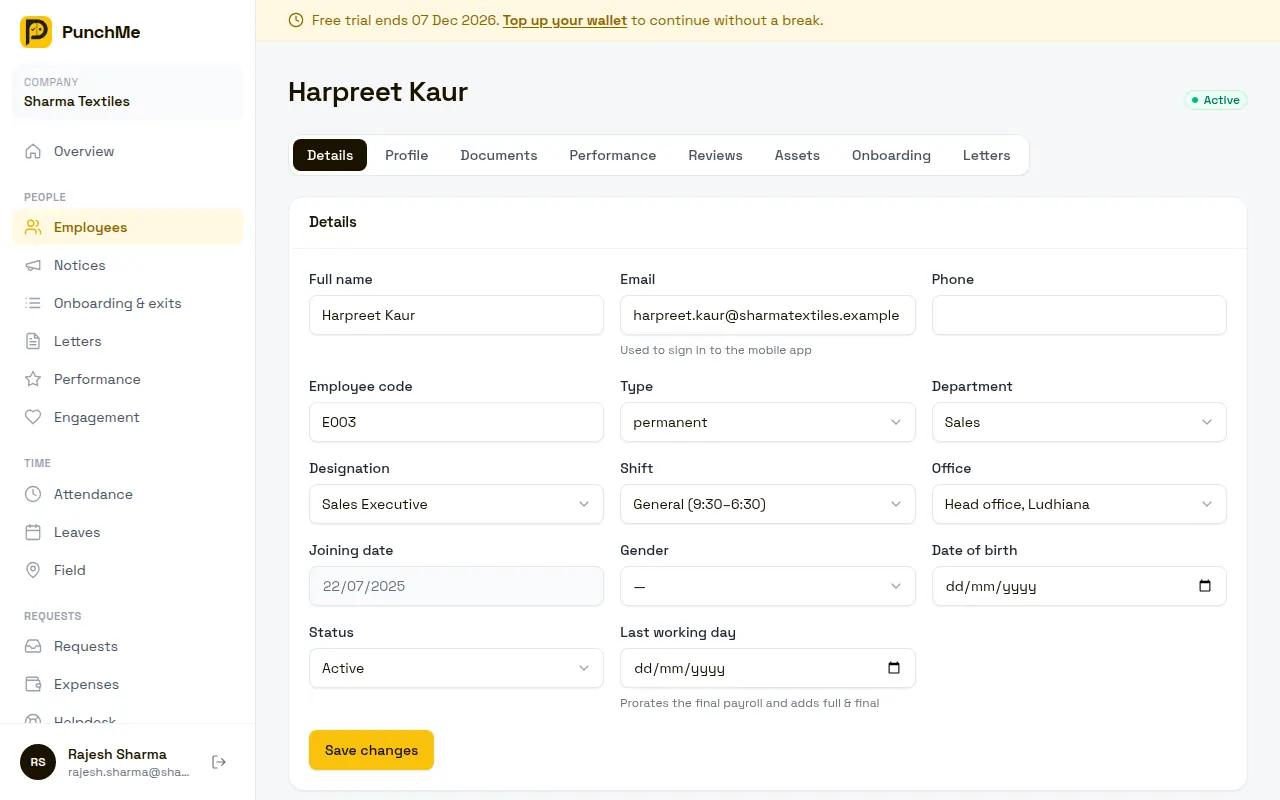
The employee record
The Details tab holds:
- Full name (required)
- Email: used to sign in to the employee app
- Phone, Employee code, Type (permanent, intern, contract, part time, consultant)
- Department, Designation, Shift, Office
- Joining date, Gender, Date of birth
- Status and Last working day (only on existing employees)
The Profile tab holds three sections:
| Section | Fields |
|---|---|
| Personal | Date of birth, gender, blood group, marital status, father's name, spouse's name, personal email, phone, current and permanent address, emergency contact, relation and phone |
| Statutory IDs | PAN, Aadhaar (last 4 digits only), UAN, ESI IP number |
| Bank | Account number, IFSC, bank name, account holder |
PAN, UAN, ESI number and bank account are stored encrypted. Everyone sees them masked, like ••••1234. People with payroll.manage can click Reveal to see the full values. Every reveal is written to the audit log. See Data privacy and audit.
PunchMe stores only the last 4 digits of Aadhaar, never the full number.
Employee code
The employee code is optional. If you set it, it must be unique in your company. PunchMe checks this against every employee, including archived ones, so you cannot reuse an archived person's code.
The code appears in letters and on the kiosk if the kiosk asks for a code. See Kiosk.
Profile completeness
PunchMe scores each profile out of 100%. It checks:
- Personal details: date of birth, gender, address, emergency contact name and phone, and father's name
- PAN
- UAN (only if PF is on in the employee's latest salary structure)
- Bank account and IFSC
- An ID proof document and a photo document
- Face enrollment (only if face check is on)
Click Incomplete profiles on the Employees page to see who is missing what. Click Send reminder to all (or select people first) to push a reminder to their phones.
Status: active, inactive and archived
| Status | Can use the app | Counted for billing | Shown in Employees list | Can you edit |
|---|---|---|---|---|
| Active | Yes | Yes | Yes | Yes |
| Inactive | No | No | Yes | Yes |
| Archived | No | No | Only with the Archived filter | No |
Active is the normal state for working staff.
Inactive blocks app sign-in and stops billing for that person. You can set them back to Active at any time from the Status field. Use it for long breaks, or for someone who has left but whose records you still want to keep editing. Inactive employees are not included in new review cycles, profile reminders or celebrations.
Archived is a soft delete. When you click Archive:
- The person loses app access.
- Their phone is unbound.
- Their email is freed, so it can be used for a new employee.
- They stop counting for billing.
- Their record becomes read-only.
There is no un-archive button. If you archive someone by mistake, add them again as a new employee.
Payroll skips inactive employees unless their last working day falls in or after the payroll month. Set the Last working day before you make someone inactive, so their final month and full and final settlement are processed. When a last working day has passed, PunchMe makes the employee inactive on its own and signs them out of the app. See Onboarding and exit.
Self-service: what employees can change
You decide, per section, whether employees can edit their own details in the app and whether HR must approve each change.
Turning it on or off
Open Settings, find the Employee self-service card. For each row:
- Personal details
- Statutory IDs (PAN, Aadhaar last 4, UAN, ESI)
- Bank account
- Documents
tick Employees can edit and, if you want a check, Needs HR approval. Click Save changes.
Defaults for a new company: Employees can edit is off for every section. Needs HR approval is on for every section.
Per-employee override
On an employee's Profile tab, use Self-edit:
- Company default: follow Settings.
- Allow: this person can edit every section, even if the company setting is off.
- Don't allow: this person cannot edit any section.
The override only changes whether they can edit. Whether HR approval is needed still comes from Settings.
What happens when it's on / when it's off
Edit on, approval on. The employee saves a section in the app. PunchMe creates a change request. Staff with employees.edit for that employee get an in-app note. The app shows Waiting for HR approval. Nothing changes on the record until you approve.
Edit on, approval off. The change applies straight away.
Edit off. The employee sees the section read-only, with To change these, ask your HR.
Bank changes always send a security email to the employee, whoever made the change and whether or not approval was needed. This helps catch salary fraud.
Approving profile requests
Open Requests, Profile changes. Each card shows the old value crossed out and the new value next to it. Sensitive fields stay masked unless you click Reveal full values (needs payroll.manage).
- Approve writes the new values to the profile.
- Reject asks for a reason. The employee sees it in the app as "HR declined your last change".
The employee gets a push either way. You can also decide requests in the manager app.
Changing it midway
- Turning edit off does not cancel pending requests. They stay in Requests until you decide them.
- Turning approval off does not auto-approve pending requests. Decide them by hand.
- One pending request per section. If an employee edits the same section again, the new request replaces the old one.
- Employees can Withdraw a pending request in the app.
- If HR edits a section directly while a request is pending, the request stays. Approving it later overwrites HR's edit with the values the employee sent.
Limits and edge cases
- An email can belong to only one non-archived employee across all of PunchMe, because it is the app login.
- An employee cannot be their own manager.
- The Joining date is locked in the dashboard once set. This protects leave and payroll calculations.
- CSV import takes up to 500 rows per file. Only name is required. Department, designation, office and shift must match names in Setup.
- Office- and team-scoped staff can only create employees inside their own office or department.
- Profile change requests are stored encrypted until approved.
Related
- Documents
- Onboarding and exit
- Roles and permissions
- Device binding
- Face check
- Salary structure
- Data privacy and audit
Common questions
What is the difference between inactive and archived?
Inactive is reversible. The person cannot use the app and is not billed, but you can still edit the record and set them active again. Archived is permanent, frees the email and makes the record read-only.
Why can't an employee edit their bank details in the app?
Employees can edit is off by default. Turn it on for Bank account in Settings, Employee self-service, or set Self-edit to Allow for that one person.
Who gets told about a profile change request?
Staff with employees.edit whose scope covers that employee, plus the owner. They get an in-app notification that links to Requests.
Can I see an employee's full PAN or bank account?
Only with payroll.manage. Click Reveal on the Profile tab. The reveal is logged in the audit log.
Does archiving an employee delete their attendance or payslips?
No. Archiving hides the person and blocks access. Their attendance, leave, payslips and documents stay in PunchMe.
Someone left. Should I archive them right away?
Not before their final payroll. Set the Last working day first. PunchMe makes them inactive the day after it. Run payroll for that month, then archive them if you want.