Reviewing flagged punches
Updated 2026-11-07
What it is
A flagged punch is a punch PunchMe accepted but wants a person to look at. It happens when a punch has a problem and your punch rule for that problem is set to Allow, flag for review. The punch counts as normal. It waits in a review queue until someone keeps it or rejects it.
Flagging gives you a middle path. Staff aren't stopped at the door for a grey-area problem, like weak GPS, but nothing slips through unseen.
Who uses it
- Owner: sees and reviews every flagged punch.
- Users with
attendance.managereview flagged punches for the employees in their scope. HR, Office Manager and Office HR roles have it out of the box.- Company scope: everyone.
- Office scope: employees whose home office is their office.
- Team scope: employees in their department.
- Employees are not told that a punch was flagged. They see their normal status in the app.
Where to find it
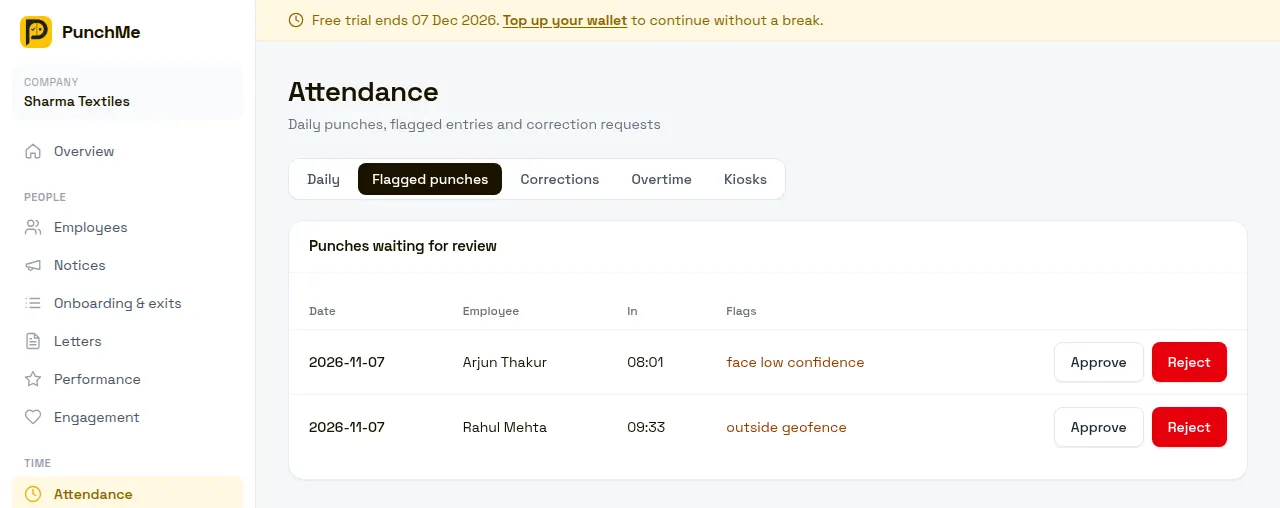
- Dashboard: Attendance → Flagged punches tab. The tab only shows if you have
attendance.manage. - Manager app: Attendance tab → Flagged filter. The Home tab also shows a Flagged punches tile with the count waiting.
- Notifications: each flagged punch sends "Punch needs review" with the employee's name and the flags. Opening it takes you to the queue.
What you see
The dashboard queue shows, newest date first, 100 per page:
| Column | Meaning |
|---|---|
| Date | The day of the record |
| Employee | Who punched |
| In | Check-in time |
| Flags | Every problem recorded on this day, such as "poor accuracy, offline punch" |
The manager app shows more detail when you tap a record: distance from the office and the allowed radius, GPS accuracy, face score, liveness, mock GPS, the punch source (kiosk or offline) and whether the check-out was automatic.
What each flag means
| Flag | Meaning | What to check |
|---|---|---|
| outside geofence | Check-in was outside the office boundary | Distance from the office in the manager app. Was the employee on a client visit? |
| poor accuracy | GPS accuracy was worse than your limit | Accuracy value. Indoors or basement? |
| mock gps | The phone reported a fake location | Treat as serious. Talk to the employee |
| face low confidence | The face matched, but only just | Repeated cases may mean a poor enrolment; consider Reset face |
| attestation failed | The phone or app failed the integrity or signature check | Rooted phone, unofficial app, or a new phone. See Device binding |
| offline punch | Saved with no network and synced later | Punch time vs. when it arrived |
| kiosk punch | Punched on an office kiosk | Usually set to allow |
| kiosk code | Used the employee code backup on a kiosk | The face alone wasn't enough to identify them |
A flag shows here only if its rule is set to flag. Problems set to Allow are still listed in the Flags column, but don't put a record in the queue on their own.
Approve or reject
| Action | Dashboard button | Manager app button | Result |
|---|---|---|---|
| Approve | Approve | Keep punch | The day keeps its status (present, late or half day). It leaves the queue |
| Reject | Reject | Reject (mark absent) | The day's status becomes absent. It leaves the queue |
Both actions take effect at once. There is no confirm step.
When rejecting or keeping in the manager app, you can add an optional note. It is saved on the record. The dashboard buttons don't take a note.
Each decision is saved in the record's history and in the audit log, with who decided and the status before and after. See Data privacy and audit.
What reject does and doesn't do
- It sets the day to absent. Payroll treats it as an absent day.
- The punch times, location and flags stay on the record, so you keep the evidence.
- It does not block the employee's phone or reset their device or face.
- The employee is not sent a notification.
Turning it on or off
The review queue is always there. What decides whether punches reach it is each rule in Settings → Punch verification. Defaults that flag:
- Poor GPS accuracy
- Face match near threshold
- Offline punch (synced later)
Set a rule to Allow to stop it filling the queue, or to Block the punch to stop those punches altogether.
Changing it midway
- Changing a rule doesn't touch records already in the queue. Clear them by approving or rejecting.
- If a check-out (or undo of a check-out) raises a new problem set to Allow, flag for review, the record goes back to pending, even if you approved the check-in earlier. The same problem again, such as mock GPS on both check-in and check-out, doesn't re-open a day you already approved.
- If someone edits the day by hand or approves a correction for it, the record leaves the queue. The edit is final.
- After you reject a day, you can still change it later by editing the day or through a correction.
Limits and edge cases
- One entry per day per employee. Check-in and check-out problems on the same day show together.
- Reject always means absent. There is no "reject as half day". If you want half day, edit the day instead.
- There is no bulk approve. Decide each row.
- Records stay in the queue until decided. There is no time limit and no auto-approve.
- The auto-absent run doesn't touch days that already have a record, so a flagged day is never auto-marked absent.
- Your scope decides what you see. An office-scoped reviewer won't see a punch from an employee whose home office is elsewhere, even if they punched at the reviewer's office.
Related
Common questions
Does a flagged punch count while it waits?
Yes. It counts with its normal status until someone rejects it. If payroll runs before you review, it uses the status at that time.
I rejected by mistake. How do I undo it?
Edit the day and set the correct status, or approve the employee's correction request. The day then leaves absent. See Corrections.
Will the employee know their punch was flagged or rejected?
Not through a notification. They see the day's status in the app, so after a reject they see absent.
The queue is full of "poor accuracy". What should I do?
Check the accuracy values. If they're mostly just over the limit, raise GPS accuracy limit (m) a little, or set Poor GPS accuracy to Allow. See Geofence and GPS.
Who gets the "Punch needs review" notification?
The owner, and every dashboard user with attendance.manage whose scope covers the employee.