Device binding: one phone per employee
Updated 2026-11-07
What it is
Device binding means each employee can punch from only one registered phone. The first phone they sign in on becomes their punch phone. Nobody else's phone can punch for them, and they can't punch for someone else from their own phone.
This stops "buddy punching", where one person punches for a colleague.
Who uses it
- Employees see it once, when they first sign in to the employee app.
- HR and owners use Reset device when an employee changes or loses their phone.
Where to find it
- Employee app: the Profile tab shows "This phone is registered for punching since" a date.
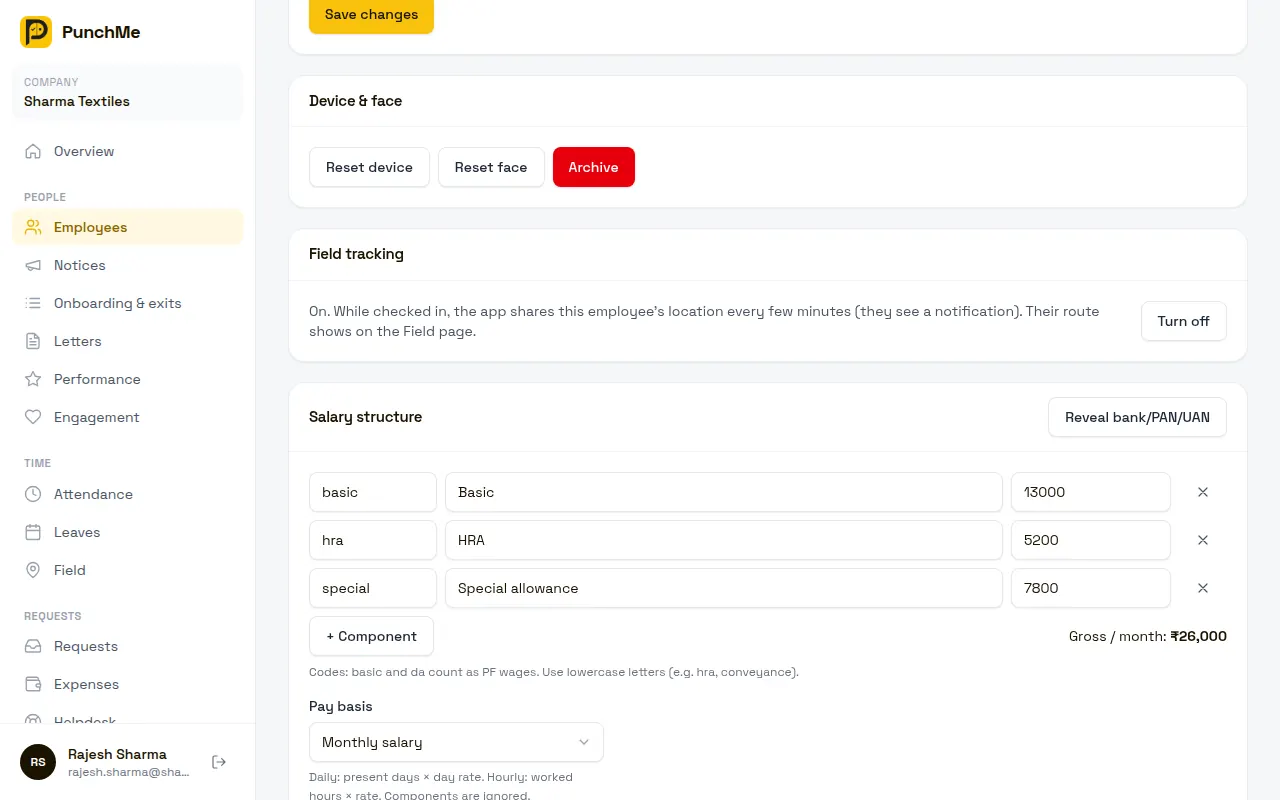
- Dashboard: open the employee's profile and use the Reset device button.
- Manager app: People → tap the employee. The work card shows Device bound since, and Reset device is below it. See Manager app.
Turning it on or off
Device binding is always on for the employee app. There is no setting to turn it off.
It doesn't apply to:
- The Manager app. Owners and HR can sign in on several phones.
- Office kiosks. A kiosk is paired separately and shared by many staff.
What happens when it's on
First sign-in
- The employee signs in with their work email and the 6-digit code.
- The app creates a device key on the phone and shows "Registering this phone…".
- PunchMe saves the phone as the employee's punch phone.
The device key
The device key is a secret key made inside the phone's secure hardware. On Android it lives in the Android Keystore. On iPhone it lives in the Secure Enclave. It can't be copied off the phone.
Every punch is signed with this key. PunchMe checks the signature before it accepts the punch. It also asks Google (Play Integrity) or Apple (App Attest) to confirm the app is genuine. A failed check is handled by your punch rules. See Punch rules.
Offline punches are signed with the same key, so they can be trusted when they sync later.
Signing in on another phone
If the employee tries to sign in on a different phone, they see:
Your account is registered on another phone. Ask your HR to reset your device, then sign in here.
They can't sign in on the new phone until HR resets the device.
Signing out
Signing out does not release the phone. The employee can sign back in on the same phone without HR.
Resetting a device
Reset the device when an employee:
- Gets a new phone.
- Loses their phone.
- Reinstalls the app or clears its data.
To reset from the dashboard:
- Open Employees and click the employee.
- Click Reset device.
- Confirm.
To reset from the Manager app:
- Go to People and tap the employee.
- Tap Reset device, then Reset.
You need permission to edit employees, and the employee must be in your office or team if your role is limited. See Roles and permissions.
What reset does
- Unbinds the old phone. It can no longer punch.
- Signs the employee out of the app on the old phone. This takes effect within about 15 minutes.
- Stops push notifications to the old phone.
- Records who did it in the audit log. See Data privacy and audit.
What reset does not do
- It does not delete attendance, leave or any other records.
- It does not reset face check. If the employee's face check also needs redoing, use Reset face. See Face check.
After the reset, the employee signs in on the new phone. That phone becomes their punch phone.
Staff devices (Manager app)
The Manager app works differently. When an owner or HR person signs in to PunchMe Manager, their phone is saved only to receive push notifications. These are called staff devices.
- There is no limit on how many phones a staff member uses.
- There is nothing to reset.
- Signing out of the Manager app removes that phone from push.
See Notifications.
Changing it midway
You can reset a device at any time, even in the middle of a shift.
- If the employee is checked in, their open attendance record stays. They can check out from the new phone after signing in.
- Punches already made from the old phone stay as they are.
Limits and edge cases
- One phone only. An employee can't have a work phone and a personal phone both able to punch.
- Reinstall = new phone. Each install gets a new identity. A reinstall, or clearing the app's data, needs a reset.
- Unsynced offline punches may be rejected after a reset. When the phone is signed out, punches still waiting to sync stay on the phone, but they were signed with the old device key, so after the phone is registered again the server may reject them and the app shows "Offline punch not accepted". Ask the employee to open the app online and let pending punches sync before you reset, if the old phone still works. Otherwise they can request a correction.
- iPhone check at registration. On iPhone, Apple must confirm the app is genuine when the phone registers. If it fails, the employee sees "This iPhone couldn't be verified — update the app and try again".
- Short delay after reset. The old phone may keep showing as signed in for up to 15 minutes, but its punches are refused straight away.
Related
Common questions
An employee got a new phone. What do I do?
Open their profile in the dashboard or the Manager app and tap Reset device. Then ask them to sign in on the new phone.
Does reset delete the employee's attendance?
No. Reset only unbinds the phone and signs it out. All records stay.
Can two employees share one phone?
Not for punching from the app. Each employee's account binds to its own phone. For shared punching, use an office kiosk.
The employee signed out. Do I need to reset?
No. Signing out keeps the phone registered. They can sign in again on the same phone.
Does device binding apply to owners and HR?
No. Device binding is only for the employee app. The Manager app has no device limit.