Punch rules: block, flag or allow
Updated 2026-11-07
What it is
Punch rules decide what PunchMe does when a punch has a problem, such as fake GPS or a check-in outside the office. There are eight rules. For each one you pick one of three actions:
| Action | Label in Settings | What happens |
|---|---|---|
| Block | Block the punch | The punch is refused. Nothing is saved. The employee sees why |
| Flag | Allow, flag for review | The punch is saved and counts, but the record goes to Flagged punches |
| Allow | Allow | The punch is saved normally. The problem is still noted on the record |
This lets each company choose its own balance between strict and easy-going.
Who uses it
- Owner: full access.
- Changing rules needs
settings.edit. Out of the box, only the HR role has it. Office Manager and Office HR roles don't. - Users with
attendance.managereview what the rules flag. - Employees see the block message in the app when a rule blocks them.
Where to find it
Settings → Punch verification. Each rule has a dropdown. Click Save changes in the bar at the bottom. Click see what changed to check the list before saving; rule changes show as "Punch rule: …".
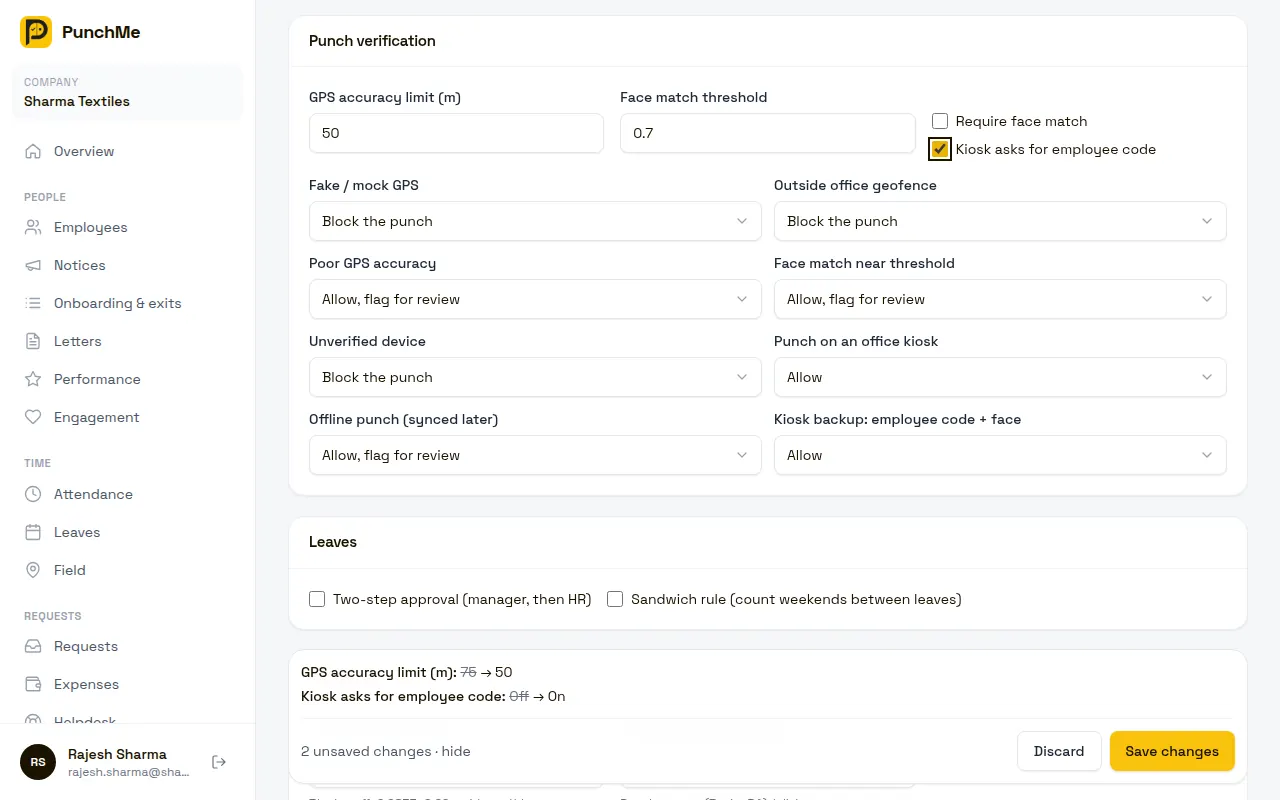
The rules
| Rule (as shown in Settings) | Triggers when | Applies to | Default |
|---|---|---|---|
| Fake / mock GPS | The phone reports a fake location | App punches, online and offline | Block the punch |
| Outside office geofence | Check-in on an office day is outside all of the employee's office boundaries | App check-ins on office days | Block the punch |
| Poor GPS accuracy | Location accuracy is worse than GPS accuracy limit (m) | App punches, online and offline | Allow, flag for review |
| Face match near threshold | The face matched, but by less than 0.05 above Face match threshold | App and kiosk, when face is used | Allow, flag for review |
| Unverified device | The phone's key signature failed, or Google Play Integrity / Apple App Attest said the phone or app isn't genuine | Online app punches and kiosks | Block the punch |
| Punch on an office kiosk | The punch came from a kiosk | Every kiosk punch | Allow |
| Offline punch (synced later) | The punch was saved on the phone with no network and synced later | Every offline punch | Allow, flag for review |
| Kiosk backup: employee code + face | On a face-only kiosk, the employee typed their employee code because face alone couldn't tell who they were | Kiosk punches when Kiosk asks for employee code is off | Allow |
Messages employees see when a rule blocks
| Rule | Message |
|---|---|
| Fake / mock GPS | "Fake GPS detected — turn off mock location apps and try again" |
| Outside office geofence | "You are outside the office geofence. Move closer and try again." |
| Poor GPS accuracy | "GPS signal is too weak — move to an open area and try again" |
| Face match near threshold | "Face match was not clear enough — try again in better light" |
| Unverified device | "This phone couldn't be verified — reopen the app or ask HR to reset your device" |
| Punch on an office kiosk | "Your company doesn't accept kiosk punches — use the PunchMe app on your phone" |
| Offline punch | "Your company doesn't accept offline punches — punch again when you're online" |
| Kiosk backup | "Your company doesn't allow the employee code backup on kiosks — ask HR" |
If several rules block the same punch, the employee sees one message: the one for the first problem found. On the phone app, checks run in this order: device, face, fake GPS, GPS accuracy, geofence.
Checks that are not rules
Some checks always refuse the punch. You can't set them to flag or allow:
- Expired or reused challenge: "Punch expired — try again"
- No registered phone: "Register this phone first"
- Face not enrolled while face check is on
- Liveness not passed while face check is on
- Face score below Face match threshold: "Face not recognised — try again"
- Check-in on an off day while Block punches on off days is on
- Already checked in today, or no open check-in to check out from
- Offline punch older than 72 hours, or with the phone clock more than 5 minutes ahead
Other settings in the same card
| Setting | Default | Range | Page |
|---|---|---|---|
| GPS accuracy limit (m) | 75 | 5 to 500 | Geofence and GPS |
| Face match threshold | 0.70 | 0.30 to 0.99 | Face check |
| Require face match | Off | Face check | |
| Kiosk asks for employee code | Off | Kiosk |
Turning it on or off
The rules are always active. To effectively turn one off, set it to Allow. The problem is still recorded on the punch, so you can see it in the Flags column, but nothing is blocked or queued.
What happens with each action
Block: the server refuses the punch before saving anything. No record is created or changed. Nobody is notified. The employee can fix the cause and try again.
Flag: the punch is saved with its normal status (present, late, half day). The flag is stored on the record and the record's review status becomes pending. Everyone with attendance.manage whose scope covers the employee, plus the owner, gets a "Punch needs review" notification. The day counts as normal unless someone rejects it.
Allow: the punch is saved with its normal status. The flag is stored on the record for reference. It does not go to review.
Changing it midway
- A rule change applies from the next punch that reaches the server.
- Records already saved keep their flags and review status. Changing a rule from flag to allow does not clear the review queue. Approve or reject what's there.
- Offline punches are judged by the rules in force when they sync, not when they were made.
- A rule set to block after a punch was saved does not undo that punch.
Limits and edge cases
- Rules are company-wide in the dashboard. Setting different rules per office is not available from the dashboard.
- Outside office geofence is never raised on check-out, on WFH days, or if none of the employee's offices has a geofence drawn.
- Unverified device is not raised if Google's or Apple's service can't be reached. PunchMe doesn't block staff because of an outage elsewhere.
- Kiosk punches skip the GPS and geofence rules. The kiosk is fixed at its office.
- Offline punches skip the phone integrity check, because it needs a network. They still need the phone's key signature.
- When one punch has several flagged problems, it shows once in the review queue with all its flags.
- A record that is already reviewed goes back to pending if its check-out is flagged.
Related
Common questions
What should I start with?
Keep the defaults. They block clear fraud (fake GPS, outside the office, unverified phone) and flag grey areas (weak GPS, close face match, offline). After two weeks, look at the flags. If one kind is always fine, set it to Allow.
Staff often fail with "outside the office geofence" but they really are inside. Should I set the rule to allow?
Fix the geofence first: move the pin or widen the radius. If you can't, set the rule to Allow, flag for review so the punches go through and you can still check them.
Why is "Unverified device" blocking a genuine employee?
Their phone may fail Google's device check, often because it is rooted, runs a custom ROM, or the app wasn't installed from Google Play. Ask them to reinstall from the Play Store. If their phone was replaced, click Reset device. See Device binding.
If I block offline punches, what happens to punches saved on phones?
When they sync, they are refused with "Your company doesn't accept offline punches — punch again when you're online". The employee then punches again online, or asks for a correction.
Is a flagged punch counted for payroll?
Yes, until someone rejects it. A rejected punch marks the day absent. See Flagged punches.
Does Allow hide the problem?
No. The flag is still saved on the record and shows in the Flags column on Attendance → Daily.