Office kiosk for shared face punching
Updated 2026-11-07
What it is
A kiosk is a shared tablet or phone at your office entrance that staff use to punch with their face. They don't need their own smartphone. The kiosk recognises who is in front of it from everyone allowed at that office, then checks them in or out.
It suits factories, shops, clinics and sites where not everyone carries a smartphone, or where you don't want personal phones used for attendance.
Who uses it
| Who | What | Permission |
|---|---|---|
| HR or office manager | Add a kiosk, get a pairing code, remove a kiosk | attendance.manage |
| Admin | Kiosk settings and rules | settings.edit |
| Employees | Punch on the kiosk | None. They need an enrolled face. |
Office-scoped staff, such as the Office Manager and Office HR roles, can only add and see kiosks for their own office. Team-scoped and self-scoped users see no kiosks. See Roles and permissions.
Where to find it
- Dashboard: Attendance, then the Kiosks tab.
- Tablet: the PunchMe employee app on Android, iPad or iPhone. On the sign-in screen, tap Set up as office kiosk.
- Settings: Settings, Punch verification card.
Before you start
- A tablet or phone with a working front camera and internet. Android, iPad and iPhone all work.
- The PunchMe employee app installed on it.
- Every employee who will use the kiosk must have set up face check in their own app first. The kiosk can't recognise someone with no enrolled face.
Set it up
1. Create the kiosk in the dashboard
- Open Attendance and go to the Kiosks tab.
- Click Add kiosk.
- Enter a Name, for example "Entrance tablet".
- Pick the Office. Punches on this kiosk count as being at this office.
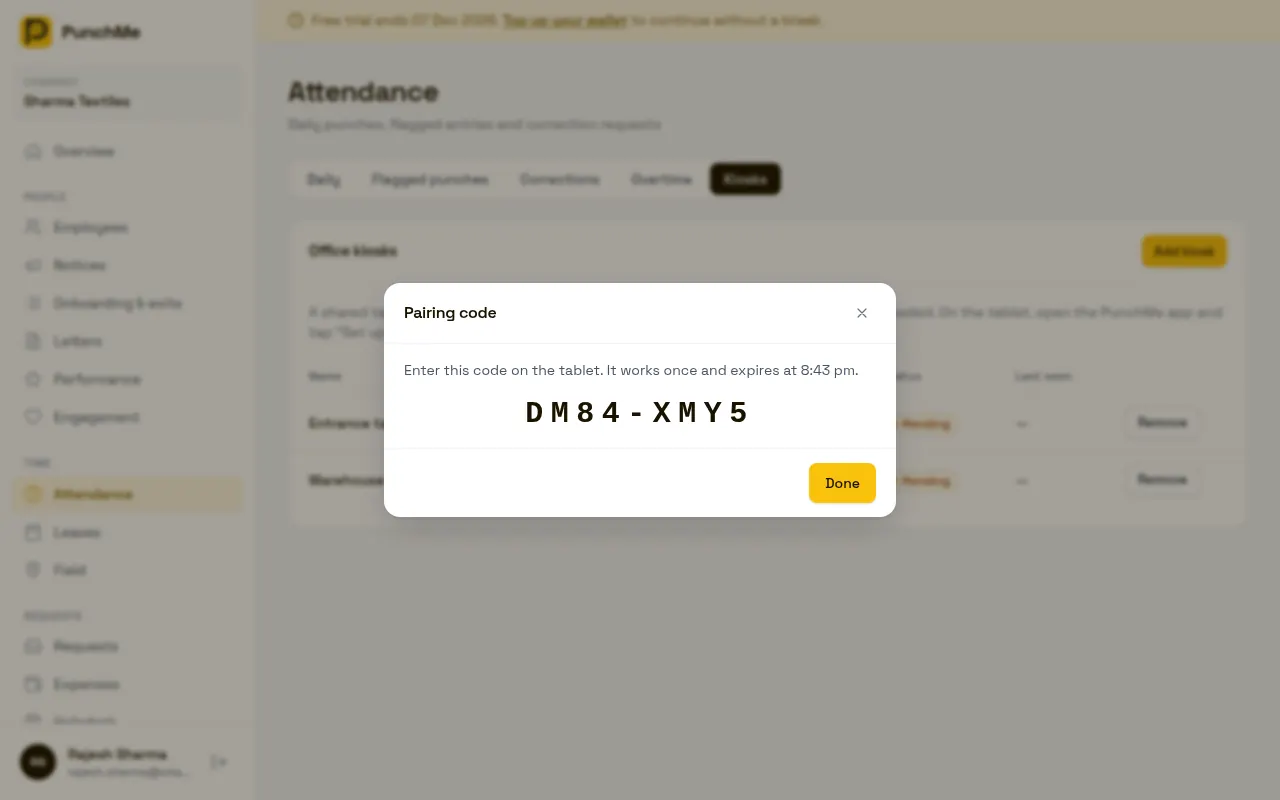
- Click Get pairing code.
A pairing code like K7QM-4XRT appears. It is 8 characters, works once, and expires after 10 minutes. The code never uses 0, O, 1, I or L, so it is easy to read.
2. Pair the tablet
- Open PunchMe on the tablet. On the sign-in screen, tap Set up as office kiosk.
- Type the pairing code.
- Choose an Exit PIN of 4 to 8 digits and type it again in Repeat PIN.
- Tap Pair this tablet.
If the code is wrong or older than 10 minutes, the tablet says "That code is wrong or has expired — ask HR for a new one". Click Add kiosk again to get a fresh code.
The kiosk now shows active in the dashboard, with a Last seen time.
Punching on the kiosk
The kiosk screen is locked full screen. It shows your company, the office, a large clock and a Tap to punch button.
- The employee taps the screen.
- If your company requires it, they type their employee code first.
- They look at the camera and follow the liveness steps on screen.
- The screen turns green with "Hi Priya" and "Checked in · 9:28 AM", or red with the reason.
- After 4 seconds, it is ready for the next person.
If the person has an open check-in, the kiosk checks them out. Otherwise it checks them in.
How the kiosk knows who you are
The kiosk turns the face scan into a set of numbers and sends it to PunchMe. No photo is stored on the tablet or on the server. PunchMe compares it with every enrolled face of employees allowed at the kiosk's office. This is called 1:N matching.
To accept a match, two things must be true:
- The best match clears your Face match threshold (default 0.7).
- The best match is clearly better than the second-best. If two people score too close, the kiosk says "Not sure who you are — try again, a little closer". This stops it from picking the wrong person.
Who can punch on a kiosk
Only employees allowed at the kiosk's office:
- Employees whose home office is that office
- Employees assigned to that office
- Employees with no office set at all
Everyone else gets "Face not recognised". See Company and offices.
Turning it on or off
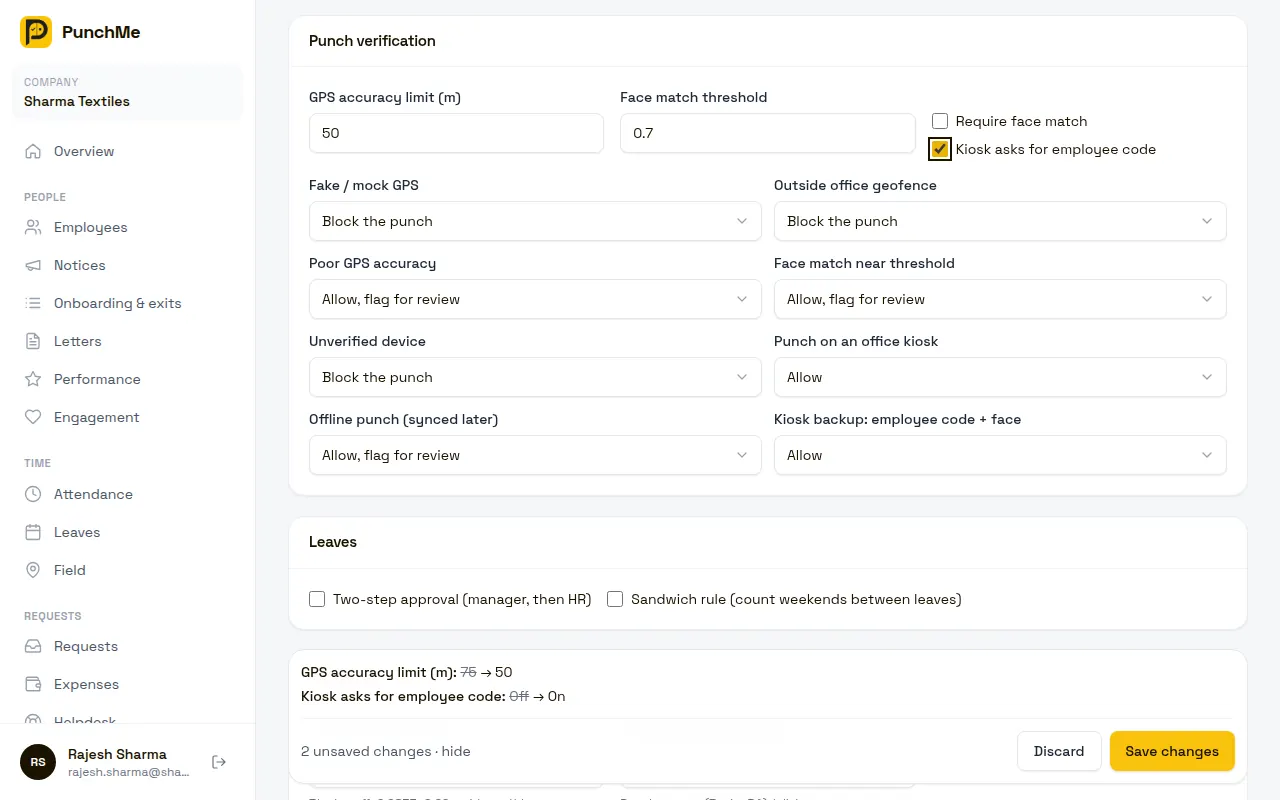
All of these are in Settings, Punch verification.
| Setting | Default | What it does |
|---|---|---|
| Kiosk asks for employee code | Off | Every punch starts with the employee code. Only that employee's face is checked. |
| Punch on an office kiosk | Allow | Block, allow, or allow and flag every kiosk punch |
| Kiosk backup: employee code + face | Allow | What to do when someone uses the backup code after a failed face match |
Each rule has three options: Block the punch, Allow, flag for review, Allow. Flagged punches go to Flagged punches.
Kiosk asks for employee code
When on, the kiosk asks "Enter your employee code" before the face scan. PunchMe then compares the face with that one employee only. Upper and lower case don't matter, so e042 finds E042. This is more accurate, and better for large offices or look-alike staff. It costs one extra step per person.
"Use employee code instead" backup
When Kiosk asks for employee code is off, the kiosk matches faces only. If a face match fails with "Face not recognised" or "Not sure who you are", the red screen shows a Use employee code instead button.
- The employee taps Use employee code instead.
- They type their code and tap Continue.
- They do the face scan again. Only their face is checked this time.
Because this path is used after a failed match, the punch is tagged "kiosk code". The Kiosk backup: employee code + face rule decides what happens:
- Allow (default): recorded, no review
- Allow, flag for review: recorded and sent to Flagged punches
- Block the punch: refused with "Your company doesn't allow the employee code backup on kiosks — ask HR"
The face must still match. A code alone never punches anyone in.
What happens on each kiosk punch
- The punch is recorded at the kiosk's office. GPS and geofence are not checked, because the tablet is fixed at the office.
- The punch is tagged "kiosk punch", plus any other flag. For example, "face low confidence" if the match was close to the threshold.
- The tablet signs every punch with its own key, so punches can't be faked from another device.
- Late and half day are worked out the same way as phone punches. See Absent and half day.
- If Block punches on off days is on, the kiosk refuses check-ins on off days and holidays too.
Exit kiosk mode
- Long-press the lock icon in the top-right corner.
- Enter the exit PIN and tap Exit.
If the PIN is wrong, the kiosk stays locked and shows "Wrong PIN".
Exiting kiosk mode removes the kiosk from PunchMe. The dashboard shows it as removed. To use the tablet as a kiosk again, add a new kiosk and pair it again. If the tablet is offline when you exit, it still exits. Then remove it from the dashboard yourself.
Remove a kiosk from the dashboard
If a tablet is lost, stolen or replaced, open Attendance, Kiosks and click Remove next to it. Confirm with Remove.
The kiosk's access is cut off immediately. The next time anyone taps it, the tablet leaves kiosk mode and goes back to the sign-in screen.
Use this also if someone forgets the exit PIN. Remove the kiosk, and the tablet unlocks on its next tap.
Changing it midway
- Settings changes reach the kiosk after its next punch, because it reloads its settings every time it returns to the idle screen.
- Moving an employee to another office changes which kiosks recognise them from their next punch.
- Changing a rule to block or flag only affects new punches. Past kiosk punches keep their tags.
- Removing a kiosk doesn't change punches already made on it.
- Removing the kiosk's office stops the kiosk with "This kiosk's office was removed — ask HR to set it up again".
Limits and edge cases
- Internet is required. Kiosks don't save punches offline. Offline punch works only in the employee's own app.
- One check-in per day. After someone checks in and out, another scan the same day says "You've already checked in today". Undo checkout isn't available on the kiosk.
- Twins and look-alikes. Face matching can't reliably tell identical twins or very similar siblings apart. The kiosk will often say "Not sure who you are". Turn on Kiosk asks for employee code, or have those employees punch on their own phone.
- Employee codes. The kiosk turns what's typed into capital letters. Use employee codes made of capitals and digits, for example
E001, or the typed code won't match. - Account on hold. If your PunchMe account is on hold, the kiosk shows "Your company's PunchMe account is on hold — contact your admin". See Billing and wallet.
- Camera permission. If the camera is blocked, the kiosk says "Allow camera access in Settings to use the kiosk".
- Large offices. The kiosk compares against everyone allowed at that office. It works well up to a few hundred enrolled people per office. Beyond that, turn on Kiosk asks for employee code.
- Lighting. Place the tablet at face height, facing away from windows. Strong light behind people causes failed matches.
- Locked screen. On Android, the kiosk hides the system bars and ignores the back button. Swiping can still show the bars briefly. For a fully locked device, also use your tablet's own screen pinning (Android) or Guided Access (iPad).
Related
Common questions
Does the kiosk store photos of my staff?
No. The tablet turns each face scan into numbers and sends only those. Face templates are stored encrypted on the server. See Data privacy and audit.
Can one kiosk serve two offices?
No. Each kiosk belongs to one office. Add one kiosk per office.
The pairing code expired before I entered it.
Codes last 10 minutes. Click Add kiosk again to create a new one. The old one shows as expired in the list.
Someone forgot the exit PIN.
Remove the kiosk in the dashboard. On its next tap, the tablet leaves kiosk mode. Then pair it again with a new code and PIN.
Can employees use both the kiosk and their phone?
Yes. Both record to the same attendance day. Kiosk punches are tagged "kiosk punch" so you can tell them apart.
Does the kiosk work with face check turned off for the company?
Yes. The kiosk always uses face recognition, whatever the Require face match setting. Employees still need an enrolled face.