Helpdesk tickets and the Ask PunchMe help bot
Updated 2026-11-07
What it is
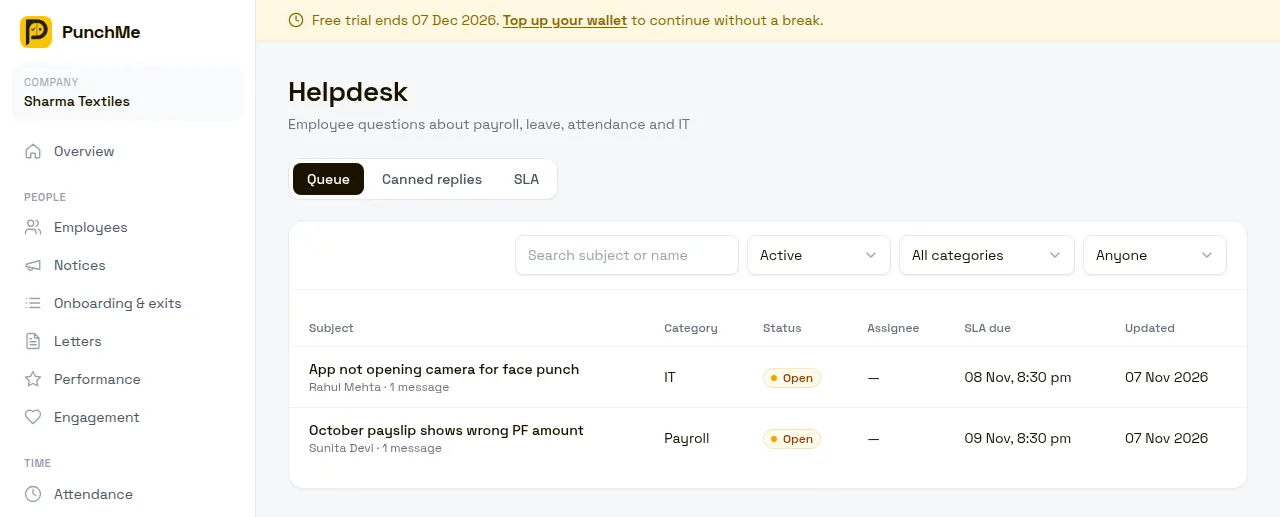
Helpdesk is a ticket system for employee questions to HR. An employee raises a ticket from the app about payroll, leave, attendance, IT or anything else. HR replies in a thread, and the employee gets a notification. Every question is tracked until it is resolved, instead of getting lost in WhatsApp.
Ask PunchMe is a simple help bot in the employee app. It answers common questions from your company's FAQ list and from the employee's own records, before they need to raise a ticket.
Who uses it
| Task | Permission needed |
|---|---|
| See the Helpdesk queue, tickets and canned replies | helpdesk.view |
| Reply, add internal notes, change status, assign, manage canned replies | helpdesk.manage |
| Change SLA hours | settings.edit |
| See the Ask PunchMe questions in Settings | settings.view |
| Edit the Ask PunchMe questions and HR contact | settings.edit |
The HR, Office Manager and Office HR system roles include both helpdesk permissions. Scoped roles only see tickets from employees in their office or department. See Roles and permissions.
Employees raise and reply to their own tickets in the app. They never see other people's tickets.
Where to find it
- Dashboard: Helpdesk, with tabs Queue, Canned replies and SLA.
- Ask PunchMe questions: Settings, Ask PunchMe (help bot) card.
- Manager app: read tickets, reply and Mark resolved.
- Employee app: Profile, Help & HR, Raise a ticket. Ask PunchMe is under Profile, Ask PunchMe.
Raising a ticket
In the app, the employee picks a category (Payroll, Leave, Attendance, IT or Other), types a subject and a message, and can attach one file. They tap send.
Staff with helpdesk.manage for that employee, plus the owner, get an in-app note and an email.
Ticket statuses
| Status | Meaning |
|---|---|
| Open | New. Nobody has replied yet. |
| In progress | Staff have replied. |
| Resolved | Staff think it is answered. The employee can still reply. |
| Closed | Finished. The employee cannot reply. |
How a status changes:
- The first public staff reply moves an Open ticket to In progress. It also assigns the ticket to the person who replied, if nobody was assigned.
- If the employee replies to a Resolved ticket, it goes back to Open.
- A Closed ticket stays closed. The employee sees "This ticket is closed. Raise a new one if you still need help."
- Staff can set any status from the dropdown on the ticket, including reopening a closed ticket.
Replying, internal notes and canned replies
Open a ticket from the Queue. Type in the Reply box and click Send reply. The employee gets an in-app note, a push and an email with your reply.
Tick Internal note (not visible to the employee) to leave a note for other staff. Notes show in amber and are never sent to the employee, nor are their attachments. The button changes to Add note.
You can attach one file to each message: PDF, JPEG, PNG or WebP, up to 5 MB.
Canned replies are saved answers for common questions. Create them on the Canned replies tab with New reply, a Title and Reply text. When replying, pick one from Insert a canned reply…. It is added to the box, so you can edit it before sending.
Assignees
Use the Assignee dropdown on a ticket to pick who owns it. The list shows the owner and every team member whose role has helpdesk.manage. The new assignee gets an in-app note.
When an employee replies to an assigned ticket, only the assignee is notified. When it is unassigned, everyone with helpdesk.manage in scope is notified.
In the Queue, filter by Assigned to me or Unassigned.
SLA
Each category has a response target in hours, counted from when the ticket is raised:
| Category | Default |
|---|---|
| Payroll | 48 hours |
| Leave | 24 hours |
| Attendance | 24 hours |
| IT | 24 hours |
| Other | 72 hours |
Change them on the SLA tab (1 to 720 hours) and click Save. Open and in-progress tickets past their target show Overdue in the queue and SLA overdue on the ticket. The queue is sorted by SLA due time, so the most urgent come first.
Turning it on or off
There is no switch for Helpdesk. Every employee can raise tickets in the app. Control who answers by giving roles helpdesk.view and helpdesk.manage.
Ask PunchMe is always on in the app. You control what it says.
Ask PunchMe help bot
What it answers
The bot does not use AI and never makes up answers. It works in two ways:
- Your FAQ list: it matches the employee's words against each question and its keywords, and shows your answer.
- Their own data: six built-in quick questions answer from the employee's own records: My leave balance, My attendance this month, My last payslip, My shift and office, Upcoming holidays and Is my profile complete?
If nothing matches, it says "Sorry, I don't know that one yet", suggests up to 3 questions, and shows your HR contact.
Editing the FAQ
Open Settings, Ask PunchMe (help bot). PunchMe starts you with 9 default questions, covering punching, face setup, leave, corrections, payslips, phone change, geofence and bank details.
For each question set:
- Question: what the employee sees as a suggestion.
- Keywords: comma separated phrases, for example "new phone, lost phone".
- Answer: up to 2,000 characters.
- Button in the app: optional shortcut to Apply leave, My leaves, Attendance corrections, Payslips, Profile or Attendance.
Click Add question for more (up to 100), or Remove. Set HR contact for "Ask HR". If you leave it blank, the bot shows your company email and phone from Setup. Click Save changes.
Restore defaults brings back PunchMe's built-in list.
Tips for good matches
- Put the words employees actually use in Keywords, including Hindi-English mixes and typos you see often.
- Every word of a keyword phrase must appear in what the employee types for that phrase to count. Short phrases match more often.
- Keep answers short and say where to tap in the app.
Changing it midway
- SLA changes apply to new tickets only. Existing tickets keep the due time they got when raised.
- Deleting a canned reply does not change messages already sent.
- Changing a role's permissions does not change who a ticket is assigned to.
- FAQ edits apply at once to the next question an employee asks.
- Once you save your own FAQ list, PunchMe's later updates to the default questions no longer reach you, unless you click Restore defaults.
Limits and edge cases
- Messages: up to 5,000 characters. Subject: 3 to 150 characters.
- One attachment per message, 5 MB.
- Employees can only see their own tickets.
- The bot only reads the asking employee's own data. It cannot apply leave or change anything.
- An employee who has never signed in to the app will not get push notifications, but still gets the email if they have one.
Related
Common questions
Can the employee see internal notes?
No. Internal notes and their attachments are only shown to staff in the dashboard.
How do I reopen a closed ticket?
Change its status from the dropdown on the ticket to Open or In progress. Employees cannot reopen a closed ticket. They raise a new one.
Why isn't someone in the Assignee list?
Only the owner and team members whose role has helpdesk.manage appear. Add the permission to their role in Team & roles.
Does Ask PunchMe use AI?
No. It matches keywords against your FAQ and reads the employee's own records for fixed questions. It never writes its own answers.
Can different offices have different SLA targets?
No. SLA hours are set per category for the whole company.