Face check: enrolment, liveness and matching
Updated 2026-11-07
What it is
Face check confirms that the person punching is the employee who owns the account. When it is on, every punch from the app includes a short liveness check and a face scan. PunchMe compares the scan with the face the employee enrolled once, and refuses the punch if it doesn't match.
It stops "buddy punching": one person punching for another on their phone.
Who uses it
- Owner: full access.
- Require face match and Face match threshold need
settings.edit. Out of the box, only the HR role has it. - Reset face needs
employees.edit. HR, Office Manager and Office HR roles all have it. - Employees enrol once in the app, then do a face check at each punch.
- Kiosks use the same enrolled faces. See Kiosk.
Where to find it
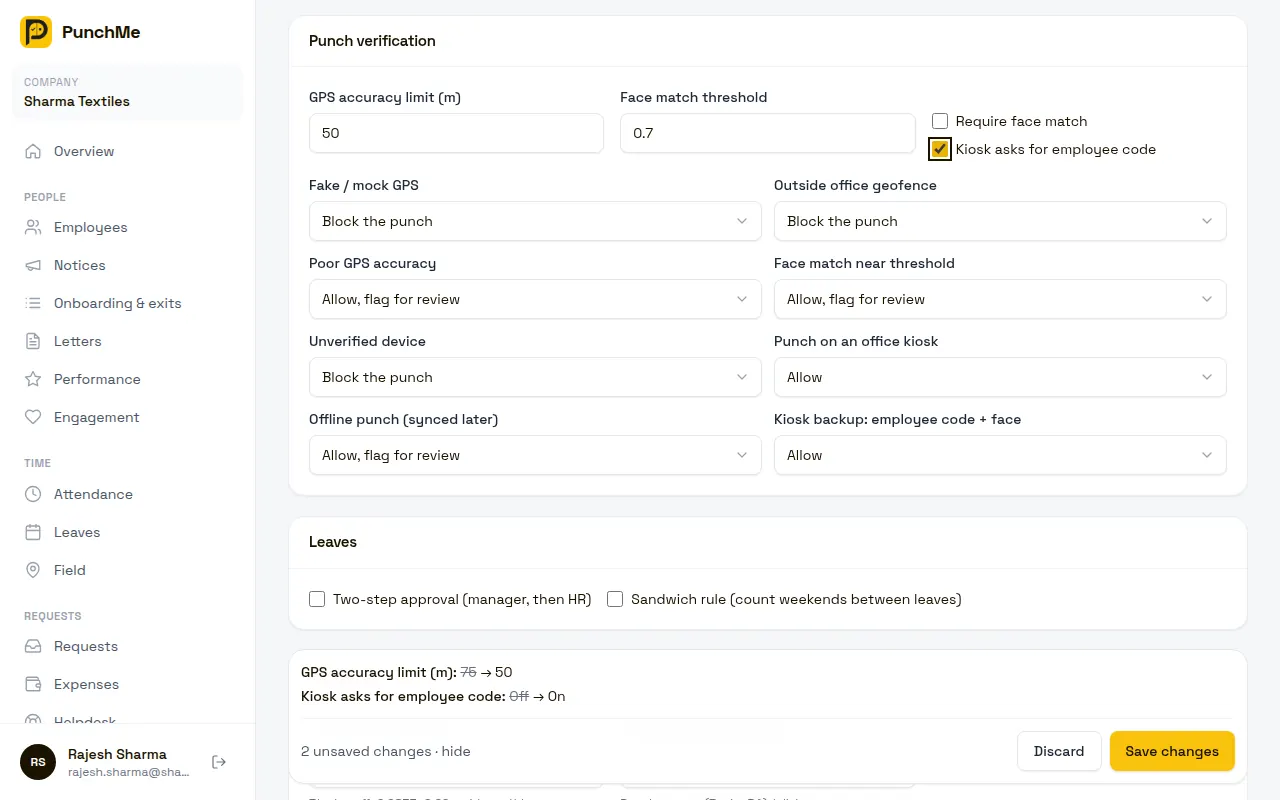
- Settings → Punch verification → Require face match (checkbox) and Face match threshold.
- Settings → Punch verification → Face match near threshold: what to do with borderline matches. See Punch rules.
- Employees → open an employee → Device & face card → Reset face.
- Employee app → Home: the Set up face check card and the Set up face button. Profile shows "Face set up" or "No face check".
Turning it on or off
- Setting: Require face match
- Default: off. The setup guide turns it on if you choose Remote only, and lets you choose for other work styles.
Click Save changes at the bottom of Settings.
What happens when it's on
- Employees who haven't enrolled see Set up face instead of Check in. They can't punch until they enrol.
- Every app punch, online or offline, needs the liveness steps and a face scan.
- The punch is refused if the face doesn't match.
- The record stores the face match score and that liveness passed. Users with
attendance.viewsee them in the manager app. - The verify method on the record is face recognition.
What happens when it's off
- No camera, no face scan. Punches use the device, phone integrity and location checks only.
- You know the punch came from the employee's registered phone, but not who was holding it.
- Faces already enrolled are kept. Kiosks still need enrolled faces to work.
Enrolment
Enrolment is a one-time setup in the employee app. It takes about 20 seconds.
- On Home, the employee taps Set up now (or the Set up face button).
- The app asks for camera permission.
- The screen says the face data is "Encrypted and used only to verify your attendance".
- The app captures five poses on its own, holding each for a few frames:
- Look straight at the camera
- Slowly turn your head left
- Now turn your head right
- Look straight again
- Hold still
- "All set": face check is ready.
The app gives live hints if something is off: "Move a little closer", "Only one face, please", "Keep your eyes open", "Keep your head level".
By saving the enrolment, the employee gives consent for face check. PunchMe records the time of consent with the enrolment.
An employee can enrol only once. To enrol again, someone must reset their face first.
Liveness
Liveness checks that a real person is in front of the camera, not a photo or video. For each punch, the server picks two different steps at random:
- Blink: close and open your eyes
- Left: turn your head left
- Right: turn your head right
- Smile
The employee does the two steps, then looks straight at the camera for the final capture. Because the steps change every time, a recorded video is unlikely to have the right moves in the right order.
Liveness is required whenever face check is on. There is no setting to turn it off in the dashboard.
Matching and the threshold
The phone turns the final capture into a list of 192 numbers (an embedding). It sends only that list. The server compares it with the five enrolled samples and takes the best match, a score from -1 to 1. Higher is more alike.
| Score | Result |
|---|---|
| Below the threshold | Refused: "Face not recognised — try again" |
| Threshold to threshold + 0.05 | Accepted, but raises Face match near threshold |
| Above threshold + 0.05 | Accepted |
- Setting: Face match threshold
- Default: 0.70
- Range: 0.30 to 0.99
A higher threshold is stricter: fewer wrong people get through, but genuine staff fail more often in bad light. A lower threshold is the opposite. Start at 0.70 and change in small steps of 0.02 to 0.05.
A face below the threshold is always refused. Your punch rules can't allow it.
Reset face
Use this when an employee's face check keeps failing, their appearance has changed a lot, or they enrolled badly.
- Open Employees and the employee.
- In the Device & face card, click Reset face.
- Confirm "Delete face enrolment? They'll enrol again in the app."
The stored face data is deleted at once. Next time they open the app, they see Set up face and enrol again.
Privacy and security
- No photos are stored or uploaded. The phone sends only the 192 numbers.
- The face model runs on the phone (MobileFaceNet, model version
mobilefacenet-v1). - Enrolled face data is encrypted on the server with AES-256-GCM. The match is done on the server, so a modified app can't just say "matched".
- Reset face deletes the encrypted face data.
- Face data is used only to verify attendance.
Changing it midway
- Turning it on: from the next punch. Staff already checked in need to enrol before they can check out.
- Turning it off: from the next punch. Enrolled faces stay, ready if you turn it back on.
- Changing the threshold: from the next punch. Past scores and statuses don't change.
- Reset face while the employee is checked in: they must enrol again before they can check out.
Limits and edge cases
- One enrolled face per employee.
- Phone and kiosk use the same threshold.
- The app needs the front camera and good light. Strong light behind the person causes most failures.
- Masks, helmets, caps and strong backlight are common causes of failed matches.
- Very similar faces, such as identical twins, can score close to each other. Device binding still ties each punch to one phone.
- If the employee cancels the face check, the punch stops with "Face check cancelled".
- The whole punch must finish within 60 seconds of tapping the button. A slow face check ends in "Punch expired — try again".
Related
Common questions
Does PunchMe keep photos of my staff?
No. The app never uploads a photo. It sends a list of numbers that describes the face, and that data is encrypted on our servers.
An employee keeps getting "Face not recognised". What should I do?
Ask them to face a light source, remove anything covering the face, and hold the phone at eye level. If it still fails, click Reset face and have them enrol again in good light.
Should I lower the threshold?
Only if many genuine staff fail. Lower it by 0.02 to 0.05 at a time and watch Flagged punches. If only one person struggles, reset their face instead.
Can an employee change or remove their own face?
They can't reset it themselves. Someone with employees.edit must click Reset face.
What if a staff member refuses face check?
Face check is a company-wide setting. You can't turn it off for one person. Without an enrolled face they can't punch from the app or a kiosk. Someone with attendance.manage can record their days by hand instead. See Corrections.