Getting started with PunchMe for owners and HR
Updated 2026-11-07
What it is
Getting started is the path from a new PunchMe account to your first employee punch. You sign up on the dashboard, finish a short setup wizard, add employees, and ask them to install the PunchMe app. Most companies finish in under 15 minutes.
This page is the checklist. Each step links to the page with the full details.
Who uses it
- The company owner. The person who signs up becomes the owner. The owner can do everything, including billing and roles.
- Team members. You can only invite them after setup, from Team & roles. If a team member opens a company that isn't set up yet, they see a "Setup in progress" screen unless their role has
settings.edit.
Employees don't use the dashboard. They use the PunchMe employee app. See Employee app.
Where to find it
- Dashboard: company.punchme.online. Sign up at /signup, sign in at /login.
- The setup wizard opens on its own at /welcome after your first sign-in. Nothing else in the dashboard opens until it's done.
- After setup: Setup (offices, shifts, departments, designations, leave types, holidays), Settings (company-wide rules), Employees, Team & roles and Billing in the left menu.
Step 1: Create your account
Sign up with:
- Your name and work email
- A password (8 to 128 characters)
- Your company name
- A phone number (optional)
We email you a link to confirm your address. The link works for 30 minutes. Until you confirm, the dashboard shows only a Verify your email screen with a Send a new link button. Check spam if it doesn't arrive.
Your company starts on a free trial straight away. No card is needed. See Billing and wallet.
One email can own only one company. If the email is already registered, sign in instead, or use a different email for the new company.
Step 2: Finish the setup wizard
The wizard has five or six steps. Each step saves as soon as you click Continue, so you can close the tab and resume later.
| Step | What you set | Notes |
|---|---|---|
| Company details | Name, industry, state, GSTIN (optional), registered address, website (optional) | State and address are required. They appear on your GST invoices. |
| Work style | Office only, Hybrid or Remote only | Decides when PunchMe checks location. |
| Office location | Office name and its boundary on the map | Skipped for Remote only. |
| Working days | Tap each day to mark it office, home or off | Hybrid lets you mark office and home days. |
| Verification | Whether to use Face match at every punch | Location is always checked on office days. Remote only forces face match on. |
| Default shift | Shift name, start, end and grace period | Starts as "General shift", 09:30–18:30, 15 min grace. |
Click Finish setup on the shift step. PunchMe then checks that you have a state, an address, at least one shift and, unless you chose Remote only, at least one office. If something is missing it tells you what to add.
After setup, the wizard offers Add your team: up to six people by name and work email. They are added with your first office, your first shift and today as their joining date. You can skip this and add people later.
Why the wizard is mandatory: late marks, absences and geofence checks all depend on a shift and an office. Without them, the first punches would be recorded wrong.
Step 3: Check your offices and shifts
Open Setup.
- Offices tab: add more offices and adjust each boundary. See Company and offices.
- Shifts tab: add more shifts with start, end and grace minutes. See Shifts.
- Departments and Designations: optional, but useful for reports and for limiting a manager to one department.
- Leave types and Holidays: set these before the first leave request. See Leaves and Working days and holidays.
Step 4: Review company-wide settings
Open Settings and go through each card. The defaults are safe for most companies, but check these three:
| Setting | Default | Why check it |
|---|---|---|
| Mark absent after | 20:00 | After this time, anyone with no punch on a working day is marked absent. |
| Half day below (hours) | 4 | Worked hours below this make the day a half day. |
| Require face match | Off (on for Remote only) | Turn on to stop buddy punching. Employees enrol their face in the app first. |
Click Save changes at the bottom of the page. See Company and offices for every card.
Step 5: Add employees
Open Employees and click Add employee, or Import CSV for many people at once (up to 500 rows per file). The employee's email is their app sign-in, so get it right.
See Employee profile for every field and Onboarding and exit for joining checklists.
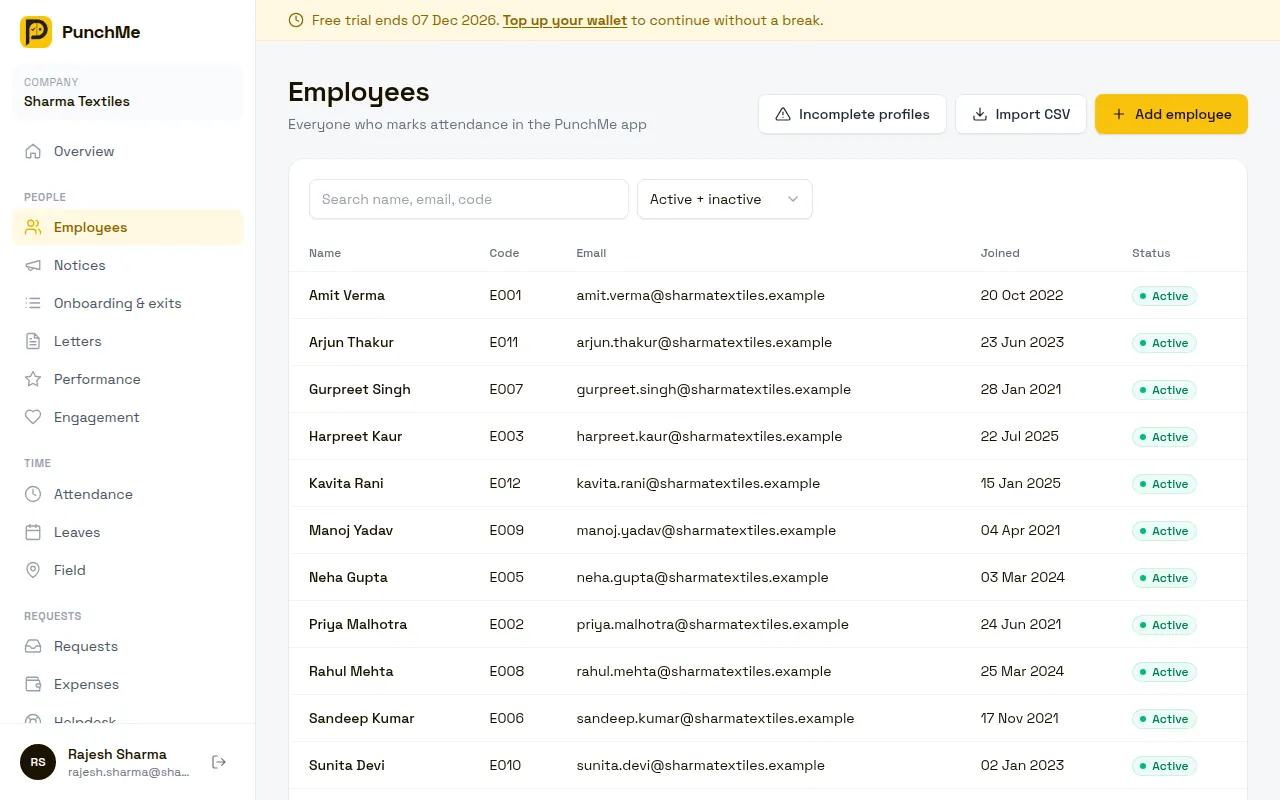
Step 6: Ask employees to install the app
Each employee:
- Installs the PunchMe app.
- Signs in with their work email. They get a 6-digit code by email. There's no password.
- Their phone is registered to them on first sign-in. See Device binding.
- Enrols their face, if face match is on. See Face check.
- Punches in. See Punching.
Step 7: Invite your HR and managers
Open Team & roles, enter an email under Invite staff, pick a role, and click Send invite. See Roles and permissions.
Team members use the dashboard and the Manager app. They are not employees. If an HR person should also punch in and get a payslip, add them on Employees with the same email too.
Step 8: Top up before the trial ends
Open Billing and click Add money. See Billing and wallet for how the first charge works when the trial ends.
Changing it midway
- Everything set in the wizard can be changed later. Settings has work style, hybrid office days, working days, timezone, face match and the rest. Setup has offices (each with an optional timezone) and shifts. An employee's own work mode is on their Details tab.
- Changing a shift or a setting doesn't rewrite punches already recorded. The new rule applies to punches made after you save.
Limits and edge cases
- Signup is rate-limited per network. If you see a "too many requests" error, wait a few minutes.
- The verification link expires after 30 minutes. Use Send a new link to get another.
- The wizard's employee step adds at most six people. Use Import CSV for more.
- Team members who don't have
settings.editcan't open anything until setup is finished. - Team & roles opens only after setup, so you can't invite anyone before you finish the wizard.
- Signing up again with the same email is refused. Ask an existing owner to invite you instead.
Related
Common questions
How long does setup take?
The wizard takes about 3 minutes. Adding employees takes longer if you type them in one by one. Use Import CSV for more than a handful.
I didn't get the verification email. What now?
Check spam. Then click Send a new link on the verify screen. Each link works for 30 minutes.
Can my HR person run the setup instead of me?
Not really. Team & roles, where you send invites, opens only after setup. The quickest path is to finish the wizard yourself (about 3 minutes), then invite HR to do the rest.
Do employees need a password?
No. Employees sign in to the app with a one-time code sent to their work email. Only dashboard users (you and your team) have passwords.
Can I change from Office only to Hybrid later?
Yes. Open Settings → Work policy, set Work style to Hybrid, tick the Office days, and click Save changes.
Does setting up cost anything?
No. The trial is free and needs no card. You pay only when the first monthly charge is taken after the trial.