Company and office notices
Updated 2026-11-07
What it is
Notices are announcements you post from the dashboard to your employees' phones. Use them for holiday reminders, policy changes, office closures or anything everyone should read.
A notice can go to the whole company or to one office only. Each notice is sent as a push notification and stays in the app's notice list until you delete it.
Who uses it
| Task | Permission needed |
|---|---|
| Read notices in the dashboard | Any team member, no permission needed |
| Post or delete notices | notices.post (office-scoped staff post only to their own office) |
Office-scoped staff can only post to their own office, and only delete their own office's notices (the Delete button isn't shown on company-wide ones). Staff limited to one department or to themselves can't post notices, since a notice can't target a department. They see company-wide notices plus their own office's. See Roles and permissions.
Employees read notices in the app. They cannot reply.
Where to find it
- Dashboard: Notices in the menu.
- Manager app: post a notice from the app.
- Employee app: tap the bell at the top of the Home screen, next to the logo.
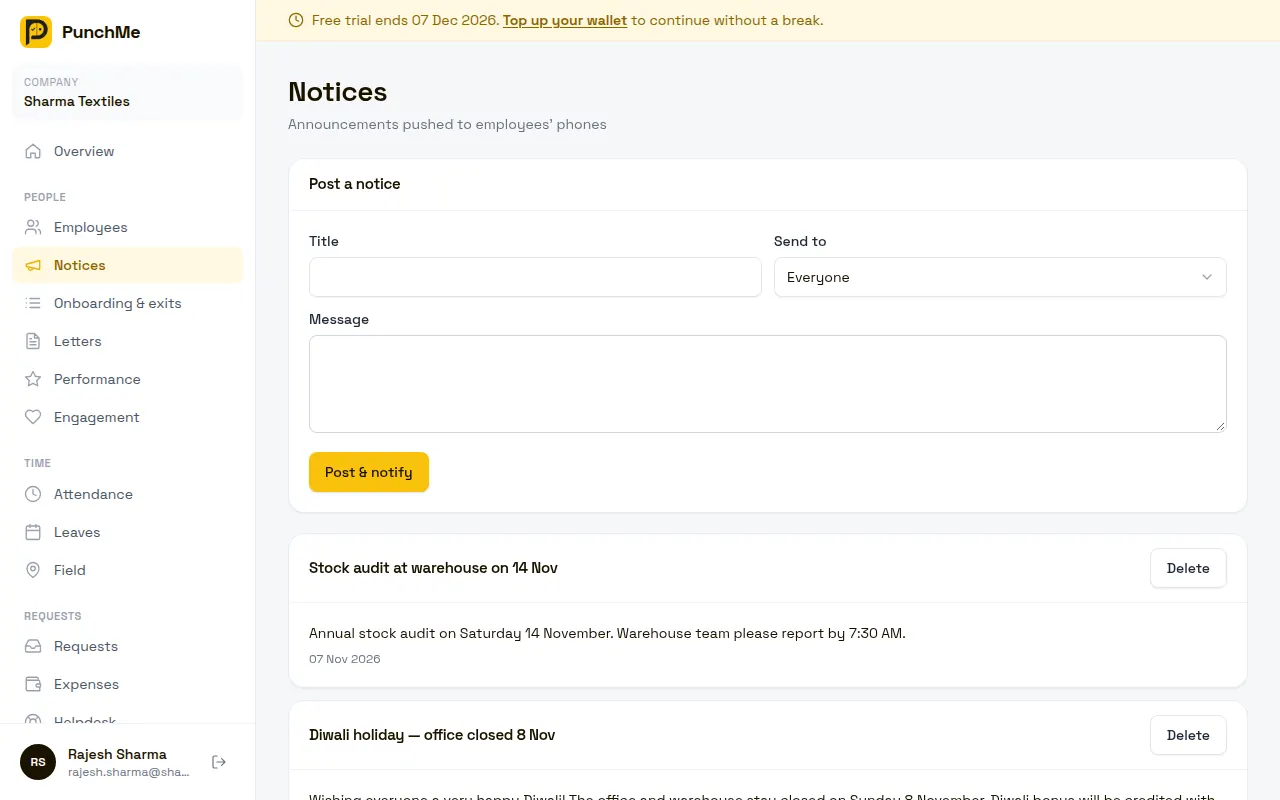
Posting a notice
On the Notices page, fill in the Post a notice card:
- Title: 2 to 150 characters.
- Send to: Everyone, or a single office ("Head office only").
- Message: 2 to 5,000 characters. Line breaks are kept.
Click Post & notify.
What happens when you post
- The notice is saved and shows at the top of the list.
- Every active employee in the chosen audience gets a push notification, with the title and the first 200 characters of the message.
- In the app, a red dot appears on the bell on Home. It clears when the employee opens the list.
Who gets it:
| Send to | Who sees it in the app | Who gets a push |
|---|---|---|
| Everyone | All employees | All active employees with the app set up |
| One office | Employees whose home office is that office | The same employees |
Employees also see notices from PunchMe itself, such as service updates. These are marked PunchMe in the list.
Turning it on or off
There is no setting. Notices are always available. To stop someone posting, remove notices.post from their role.
Employees cannot turn off notices inside PunchMe. They can mute PunchMe notifications in their phone settings, but the notice will still be in the list. See Notifications.
Changing it midway
- Notices cannot be edited. To fix a mistake, delete the notice and post a new one. The new one sends another push.
- Deleting removes the notice from the app and dashboard at once. Pushes already delivered stay on phones.
- Moving an employee to another office changes which office notices they see. They then see the new office's notices, including older ones.
Limits and edge cases
- The push goes only to employees whose home office matches. Employees allowed to punch at extra offices do not get that office's notices.
- No push reaches employees who have never signed in, whose phone was reset, or who are inactive or archived. Active employees still see the notice when they next open the app.
- No push is sent while your PunchMe account is on hold. See Billing and wallet.
- The app shows the 100 most recent notices. The dashboard shows the latest 200.
- Notices have no read receipts. You cannot see who opened them.
- Notices are one-way. For questions, employees use the Helpdesk.
Related
Common questions
Where do employees see notices?
On the Home screen of the employee app, tap the bell at the top next to the logo. A red dot means there is something new.
Can I send a notice to one department?
No. You can send to everyone or to one office.
Can I edit a notice after posting?
No. Delete it and post a corrected one. Note that this sends a second push.
An employee says they didn't get the push. Why?
They may have muted notifications on their phone, not signed in since their device was reset, or they belong to a different home office. The notice is still in their bell list if they are in the audience.
Can I see who read a notice?
No. PunchMe does not track reads for notices.