Expense claims and reimbursements
Updated 2026-11-07
What it is
Expenses is how employees claim money back for work spending, such as travel, food or fuel. They submit a claim from the employee app with an amount (or kilometres) and a receipt. You approve it, and PunchMe adds it to their next salary. You can also pay it yourself and mark it paid outside payroll.
Who uses it
| Who | What they can do | Permission |
|---|---|---|
| Employees | Submit claims, see status, cancel a pending claim | None. Any employee with the app |
| Managers and HR | See claims and receipts | expenses.view |
| Managers and HR | Approve, reject or forward claims. File a mileage claim for an employee | expenses.manage |
| HR | Give final approval when two-step approval is on | expenses.final_approve |
| Payroll team | Mark an approved claim Paid outside payroll | payroll.manage |
| Owner or admin | Add and edit categories, set the mileage rate | settings.edit |
The owner can do everything. The built-in HR and Office HR roles have all three expense permissions. The built-in Office Manager role has expenses.view and expenses.manage, but not expenses.final_approve.
Office-level and department-level roles only see claims from employees in their office or department. See Roles and permissions.
Where to find it
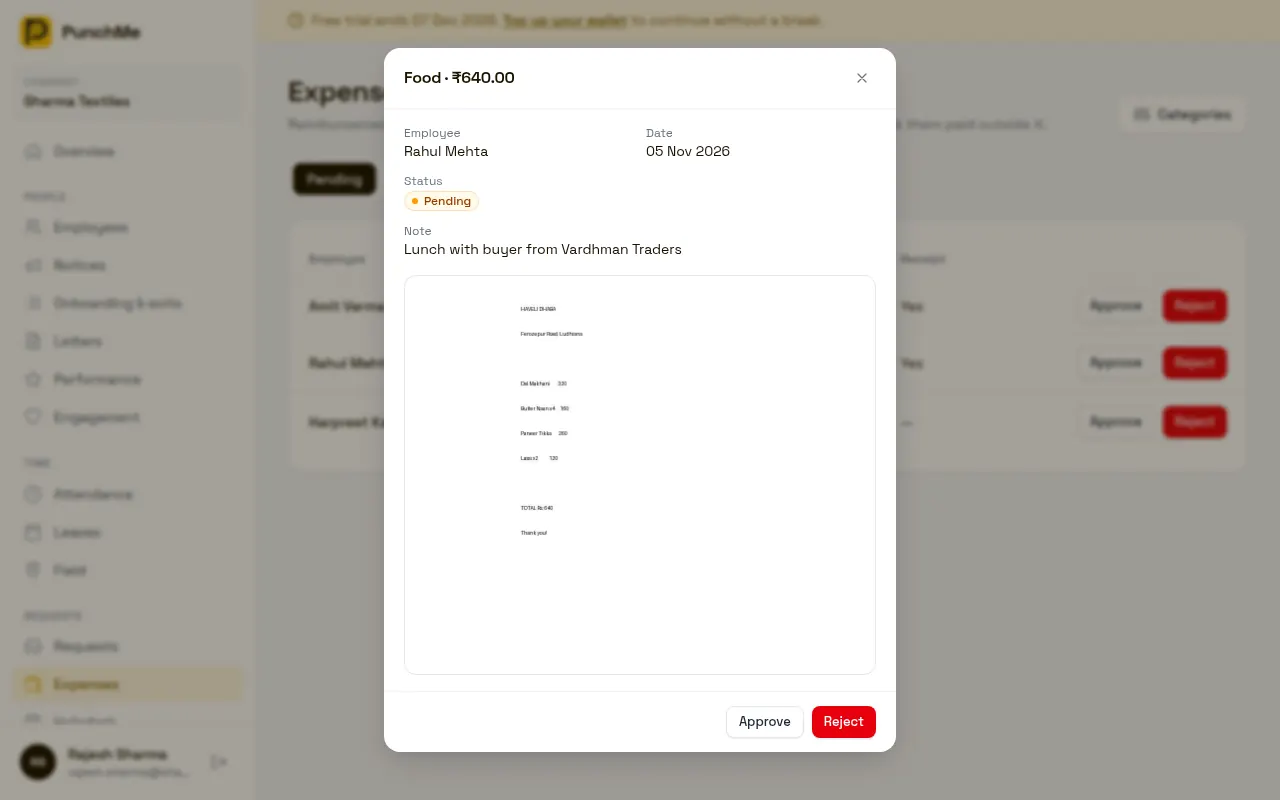
- Dashboard: Expenses. Tabs for Pending, Approved, Paid and Rejected. Click a row to see details and the receipt.
- Categories and mileage rate: Expenses, then the Categories button at the top.
- Manager app: the Approvals inbox shows expense claims with the receipt.
- Employee app: Profile tab, Expenses, then New claim.
Categories
The first time anyone opens Expenses, PunchMe creates five categories:
| Category | Receipt required | Monthly limit | Taxable |
|---|---|---|---|
| Travel | Yes | No limit | No |
| Food | Yes | No limit | No |
| Fuel | Yes | No limit | No |
| Phone | No | No limit | No |
| Other | Yes | No limit | No |
You can edit, delete or add categories. Each category has:
- Name
- Monthly limit per employee (₹): leave empty for no limit.
- Receipt required: the claim can't be sent without a photo or PDF.
- Taxable (added to taxable salary in payroll): tick it if the reimbursement should be taxed as salary.
Monthly limits
A limit is per employee, per category, per calendar month. The month is the month of the expense date, not the date the claim was sent.
PunchMe adds up the employee's pending, approved and paid claims in that category for that month. If the new claim would go over the limit, it is refused with a message like "Over the monthly Food limit of ₹3,000 (₹450 left this month)".
Rejected and cancelled claims don't count toward the limit.
Mileage claims
Mileage lets employees claim kilometres instead of an amount. The amount is km × rate.
Set the rate in Categories, Mileage rate (₹ per km). A rate of 0 turns mileage claims off. The default is 0.
For example, with a rate of ₹9 per km, a 42.5 km claim is ₹382.50.
- Mileage claims don't need a receipt, even in a category that requires one.
- Field staff with tracking on can tap Use today's tracked … km to fill in the distance. See Field tracking.
- From the Field page, a manager can file a mileage claim for an employee's tracked route.
- Each claim saves the rate in force when it was sent. Changing the rate later does not change old claims.
How a claim works
- The employee opens Profile, Expenses, New claim.
- They pick a category, enter an amount or kilometres, choose the date (today or up to 90 days back, never a future date), add an optional note, and add a receipt by Take photo or Choose file.
- Everyone with
expenses.managefor that employee gets an in-app notification and an email. - An approver clicks Approve or Reject. A reason is required to reject, and the employee sees it.
- The employee gets a push notification. An approved claim says which month's salary will pay it.
Turning it on or off
Expenses is always available to employees. There is no switch to hide it.
Related settings:
| Setting | Where | Default |
|---|---|---|
| Mileage rate (₹ per km) | Expenses, Categories | 0 (mileage off) |
| Two-step approval for leave and expenses (manager, then HR) | Settings, Leaves | Off |
Two-step approval for expenses uses the same checkbox as leave. You can't turn it on for one and off for the other.
What happens when it's on / when it's off
One-step approval (two-step off)
Anyone with expenses.manage can approve or reject.
Two-step approval (two-step on)
- Someone with
expenses.managebut notexpenses.final_approveclicks Approve. The claim is forwarded, not approved. It stays in Pending and shows "forwarded". - People with
expenses.final_approveget notified and make the final decision.
Anyone with expenses.final_approve can approve directly.
Getting paid
Paid in payroll (default)
When a claim is approved, PunchMe picks the payroll month. It is the current month, or the next month whose payroll isn't finalized yet.
In that month's payroll run, each claim is its own line on the payslip, for example "Food reimbursement (2026-10-14)".
- Non-taxable claims are paid on top of salary and are not taxed.
- Taxable claims are added to gross salary, so they count for TDS and other gross-based deductions such as ESI. They are not PF wages.
If the payroll draft was made before you approved the claim, run the draft again to pick it up. If that month is finalized without the claim, PunchMe adds it to the next month's run on its own. A claim is never paid twice in two finalized payslips.
Once the payslip with the claim is finalized, the claim moves to the Paid tab and shows "Payroll" with the month. See Payroll.
Paid outside payroll
If you pay a claim by bank transfer or cash, open the Approved tab and click Paid outside payroll. Enter a UTR, cheque number or cash reference. The claim moves to Paid and won't be added to payroll.
You can only do this before the claim is in a finalized payslip. If it is already in a payroll draft, run the draft again so it drops out.
Cancelling a claim
Employees can tap Cancel claim on a pending claim. Once approved or rejected, it can't be cancelled. There is no way to undo an approval from the dashboard. If you approved by mistake, adjust the payslip before finalizing. See Payslips.
Changing it midway
- Changing a category's limit: applies to new claims only. Claims already sent stay.
- Changing Receipt required: applies to new claims only.
- Changing Taxable: each claim takes the taxable setting at the moment it is approved. Already approved claims keep theirs.
- Deleting a category: employees can't pick it any more. Existing claims keep it and still get paid.
- Changing the mileage rate: new mileage claims use the new rate. Old claims keep theirs.
- Turning two-step approval on: pending claims need a forward or a final approver. Turning it off lets any
expenses.manageholder approve, including forwarded claims. - Approving after payroll is finalized: the claim goes into the next open month.
Limits and edge cases
- One claim can be up to ₹1,00,000. One mileage claim can be up to 2,000 km.
- The expense date can't be in the future. Old dates are allowed.
- Receipts can be a photo (JPEG, PNG, WebP) or a PDF, up to 5 MB.
- One claim has one receipt.
- Paid-in-payroll claims stay in the Approved tab until the payroll run is finalized.
- If the employee has no salary structure, they won't be in the payroll run, so payroll can't pay their claims. Pay them outside payroll.
Related
Common questions
When will an approved claim be paid?
With the salary of the payroll month shown on the claim. That is the current month, or the next month whose payroll isn't finalized yet.
Why was my claim refused for being over the limit?
The category has a monthly limit. Your pending, approved and paid claims in that category for that month, plus this one, add up to more than the limit.
Why is mileage missing in the app?
The mileage rate is 0. Set a rate in Expenses, Categories.
My manager clicked Approve but the claim is still pending. Why?
Two-step approval is on. Their approval forwarded the claim to someone with expenses.final_approve.
Are reimbursements taxed?
Only if the category is ticked Taxable. Otherwise they are paid as a tax-free line on the payslip. Check with your CA which of your categories should be taxable.