Team roles, permissions and access scope
Updated 2026-11-07
What it is
Roles control what your team members can do in the PunchMe dashboard and Manager app. A role is a named set of permissions, such as attendance.manage or payroll.view, plus an access scope that decides whose data the person can see: the whole company, one office, or one department.
The owner has every permission and sees the whole company. Everyone else gets exactly one role.
Who uses it
| Task | Who can do it |
|---|---|
| See members, roles and pending invites | Anyone with settings.view |
| Invite staff, resend or revoke invites | Anyone with team.invite (with limits, see below). Office or team-scoped staff can resend or revoke only the invites they sent. |
| Create, edit or delete roles | Owner only |
| Remove a team member | Owner only |
Why owner only: roles decide who can see salaries and change payroll. Keeping role changes with the owner stops anyone from giving themselves more access.
Where to find it
- Dashboard: Team & roles in the left menu. It has four cards: Invite staff, Members, Pending invites and Roles.
- Team members sign in at company.punchme.online with their email and password, or in the Manager app. The same role applies in both.
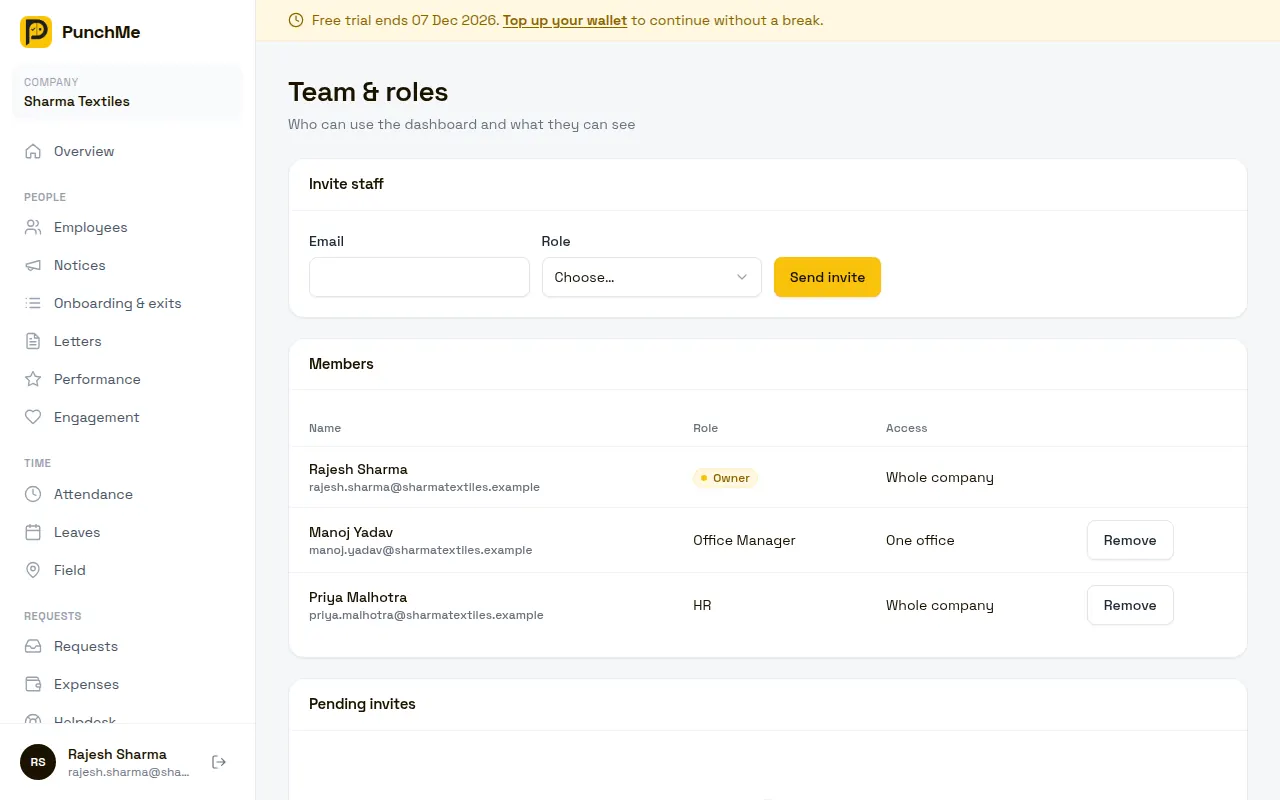
Team members vs employees
These are separate lists.
| Team member | Employee | |
|---|---|---|
| Added from | Team & roles → Invite staff | Employees → Add employee |
| Signs in with | Email and password | Email and a one-time code |
| Uses | Dashboard and Manager app | Employee app |
| Marks attendance, gets payslips | No | Yes |
| Counts toward your monthly bill | No | Yes, while active |
If your HR manager should also punch in and be paid through PunchMe, add them in both places with the same email. After you send an invite, the dashboard offers Add as employee to do this in one click.
Built-in roles
Every new company gets three roles. The owner can edit or delete them like any other role.
| Role | Access | What it's for |
|---|---|---|
| HR | Whole company | Day-to-day HR and payroll, plus Setup, Settings and Team & roles. Can't see Billing. |
| Office Manager | One office | Runs a branch: employees, shifts, attendance and leave. Can view settings and billing but not change them. No payroll. |
| Office HR | One office | HR for a branch, with final approval on attendance, leave and expenses. No payroll. |
Full permission list for each:
| Permission | HR | Office Manager | Office HR |
|---|---|---|---|
employees.view, employees.create, employees.edit | Yes | Yes | Yes |
employees.delete | No | Yes | No |
departments.*, designations.* | view, create, edit | All four | view only |
shifts.* | view only | All four | view only |
attendance.view, attendance.manage | Yes | Yes | Yes |
leaves.view, leaves.manage | Yes | Yes | Yes |
reports.view, reports.export | Yes | Yes | Yes |
attendance.final_approve, leaves.final_approve | Yes | No | Yes |
settings.view | Yes | Yes | No |
settings.edit | Yes | No | No |
billing.view | No | Yes | Yes |
billing.manage | No | No | No |
payroll.view, payroll.manage | Yes | No | No |
expenses.view, expenses.manage | Yes | Yes | Yes |
expenses.final_approve | Yes | No | Yes |
field.view | Yes | Yes | Yes |
helpdesk.view, helpdesk.manage | Yes | Yes | Yes |
letters.manage | Yes | No | Yes |
onboarding.manage | Yes | Yes | Yes |
performance.view | Yes | Yes | Yes |
performance.manage | Yes | Yes | No |
engagement.manage | Yes | No | No |
Settings and billing are company-wide, so the office-scoped Office Manager can view them but not change them: no
settings.edit(rules, offices). It can still invite staff and post notices for its own office (team.invite,notices.post); it can invite into roles no broader than its own, so another Office Manager but not Office HR or HR and nobilling.manage(top-ups). Companies created before this change keep their old Office Manager and HR roles only if they had edited them; untouched built-in roles were updated.
All permissions
| Permission | What it allows |
|---|---|
employees.view / create / edit / delete | See, add, edit employees. edit also covers archive, reset device, reset face, documents and profile change requests. |
departments.*, designations.*, shifts.* | Same four actions for each list in Setup |
attendance.view | See attendance and correction requests |
attendance.manage | Edit attendance, see and review flagged punches, approve corrections |
attendance.final_approve | Give the final approval on corrections |
leaves.view / leaves.manage | See and decide leave requests; manage leave types and holidays |
leaves.final_approve | Final approval when Two-step approval is on |
reports.view / reports.export | See reports; download them as CSV |
settings.view / settings.edit | See or change Setup, Settings and Team & roles; edit offices; edit the letterhead and checklist templates |
team.invite | Invite staff, resend and revoke invites. Invites are never broader than the inviter: same or narrower access, and only permissions the inviter has. Office-scoped staff always invite into their own office. |
notices.post | Post and delete notices. Office-scoped staff post only to their own office. |
billing.view / billing.manage | See wallet, invoices and history; add money |
payroll.view / payroll.manage | See or run payroll; reveal full bank, PAN, UAN and ESI numbers |
expenses.view / manage / final_approve | Expense claims, approval and final approval |
field.view | See field staff locations and routes |
helpdesk.view / helpdesk.manage | See and answer employee tickets |
letters.manage | Letter templates and generated letters |
onboarding.manage | Joining and exit checklists |
performance.view / performance.manage | See or manage goals, check-ins and review cycles |
engagement.manage | Surveys and the company wall |
The menu shows only the pages a person can open. For example, Payroll needs payroll.view, Billing needs billing.view, and Setup, Team & roles, Settings and Audit log need settings.view.
Access scope
Every role has a Can see setting.
| Scope | Shown as | What the person sees |
|---|---|---|
| Company | Whole company | All employees and their records |
| Office | One office | Only employees whose home office is the chosen office |
| Department | One department | Only employees in the chosen department |
| Self | Only themselves | Only their own employee record |
You pick the office or department when you send the invite, not when you create the role. So one "Office HR" role can serve every branch. For an Only themselves role, the invite form asks you to pick the person's employee record; that's the one record they'll see.
Scope is stored on each member, not on the role. To change one person's access later, use Edit on their row under Members.
Scope applies to employee lists, attendance, leave, corrections, expenses, helpdesk, field tracking, reports, onboarding, performance, kiosks and the Manager app. It doesn't apply to company-wide pages: Setup, Settings, Team & roles and Billing.
Payroll needs whole-company access. A payroll run covers everyone, so office- and department-scoped people can't open payroll even if their role has payroll.view.
Inviting a team member
- Open Team & roles.
- Under Invite staff, enter the email and choose a Role.
- If the role is limited to one office or department, choose which one.
- Click Send invite.
The person gets an email with an Accept invite link. A new user sets their name and password. Someone who already has a PunchMe password (for example, staff at another company) confirms with their existing password. Accepting also confirms their email.
Invite rules:
- Invites expire after 7 days. Resend sends a fresh link and restarts the 7 days. Revoke cancels it.
- Only one pending invite per email at a time.
- You can't invite someone who's already on your team.
- If you're not the owner, you can only invite into a role that's no broader than yours: no wider scope and no permission you don't have yourself. Office-scoped inviters can only invite into their own office.
Turning it on or off
There's nothing to switch on. The owner exists from signup. Roles take effect as soon as an invite is accepted.
What happens when you change roles
| Change | Effect |
|---|---|
| Edit a role's permissions | Applies to everyone with that role on their next click. No sign-out needed. |
| Edit a role's Can see scope | Applies to new invites only. Existing members keep their own scope; change it per member with Edit. |
| Edit a member | The owner can change a member's role, Can see scope, office, department or linked employee. Takes effect on their next click. |
| Delete a role | Blocked while any member uses it. Pending invites for that role stop working. |
| Remove a member | They lose access to the company straight away. Their past actions stay in the records and the audit log. |
| Re-invite a removed member | Works like a new invite. They get the role and scope from the new invite. |
Changing it midway
- Changing someone's role or office. The owner clicks Edit on the member's row under Members and picks the new role, scope and office or department. Their history is kept.
- Pending approvals. Leave, corrections and expenses waiting for someone you removed stay pending. Anyone else with the right permission and scope can decide them.
- Two-step approval. If you take
leaves.final_approveaway from everyone, requests forwarded for final approval can only be decided by the owner. - Payroll in progress. Removing
payroll.managemid-run doesn't change the run. Someone else with the permission, or the owner, can finish it.
Limits and edge cases
- There's one owner per company. Transferring ownership isn't available in the dashboard. Email support@punchme.online.
- The owner can't be removed, and can't change their own membership.
- Only themselves scope needs the team member linked to their employee record. Pick it in the invite, or with Edit on the member. Without a link they see no employee data.
- Only the owner can edit members, and not their own membership.
- Role names are up to 60 characters.
- A team member who belongs to more than one company picks the company from the switcher at the top of the menu.
- Team members must confirm their email before they can open the dashboard.
Related
Common questions
Can my branch manager see only their branch?
Yes. Invite them with a role whose Can see is One office (for example Office Manager or Office HR) and pick their office. They'll see only employees whose home office is that branch.
Why can't my HR person see Billing?
The built-in HR role includes settings.view and settings.edit, but not billing.view. The owner can edit the HR role and tick it, or create a new role.
Why can't an Office HR open payroll?
Payroll needs whole-company access. Office- and department-scoped people can't open it, even with payroll.view.
How do I change someone from Office HR to HR?
The owner clicks Edit on their row under Members, picks HR and Whole company, and saves. Their past approvals and history stay.
I changed a role from "One office" to "Whole company". Why do existing members still see one office?
Scope is stored on each member when they accept an invite. Editing the role changes it for future invites only. Use Edit on each member who needs the wider access.
Do team members count toward the bill?
No. Only active employees count. A team member who is also added as an employee counts once, as an employee.