Leaves, balances, approvals and loss of pay
Updated 2026-11-07
What it is
Leaves is where employees ask for time off and you approve or reject it. You create leave types with a yearly quota. Employees apply from the employee app, PunchMe checks their balance, and approved leave flows into attendance and payroll.
Paid leave comes out of the balance. Unpaid leave has no balance limit and becomes loss of pay (LOP) in payroll.
Who uses it
| Who | What they can do | Permission |
|---|---|---|
| Employees | Apply, see balances, cancel a pending request | None. Any employee with the app |
| Managers and HR | See requests | leaves.view |
| Managers and HR | Approve, reject or forward requests. Create and edit leave types and holidays | leaves.manage |
| HR | Give final approval when two-step approval is on | leaves.final_approve |
| Owner or admin | Turn two-step approval and the sandwich rule on or off | settings.edit |
The owner can do everything. The built-in HR and Office HR roles have all three leave permissions. The built-in Office Manager role has leaves.view and leaves.manage, but not leaves.final_approve.
People with an office-level or department-level role only see requests from employees in their office or department. See Roles and permissions.
Where to find it
- Leave types: dashboard, Setup, Leave types tab.
- Holidays: dashboard, Setup, Holidays tab. See Working days and holidays.
- Requests: dashboard, Leaves. Filter by Pending, Approved, Rejected or All.
- Approval settings: dashboard, Settings, Leaves card.
- Manager app: the Approvals inbox. Each employee's profile also shows their balances.
- Employee app: the Leaves tab shows this year's balances, past requests and the Apply leave button.
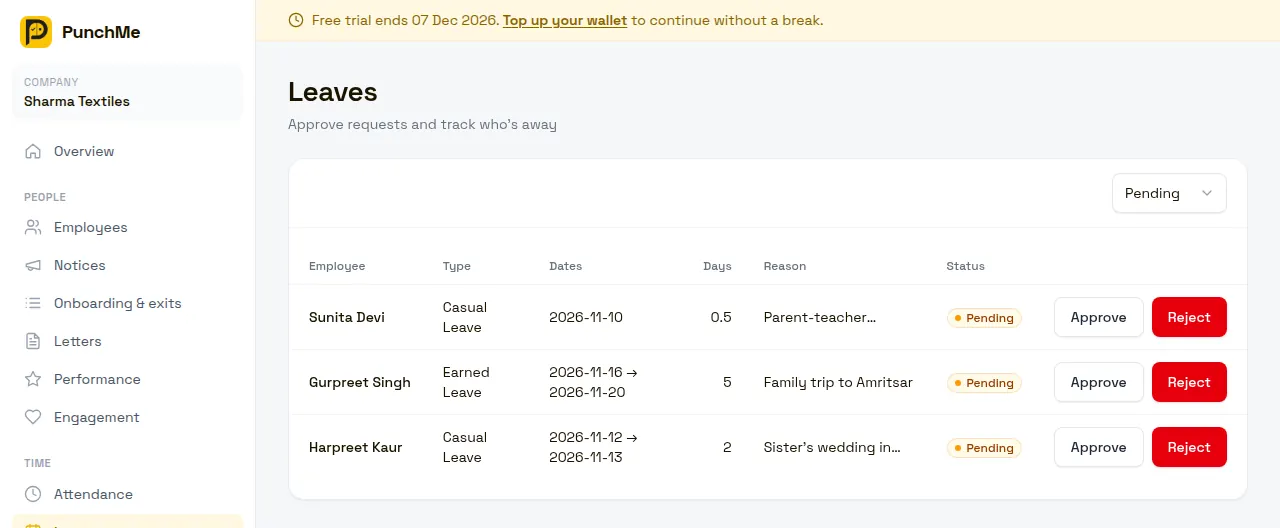
Setting up leave types
Open Setup, Leave types and add a type. Each type has:
- Name, for example Casual leave, Sick leave or Leave without pay.
- Days per year: the yearly quota. Half days are allowed, for example 7.5.
- Paid leave: tick it for paid leave. Leave it unticked for unpaid leave.
The full yearly quota is available from 1 January. PunchMe does not add leave month by month.
Every leave type applies to every employee. You can't give one office or one employee a different quota.
Leave years run January to December. They do not follow the April–March financial year.
How a request works
- The employee opens Leaves in the app and taps Apply leave.
- They pick a leave type, a From and To date, and optionally Half day and a reason. The leave type chips show how many paid days are left.
- PunchMe counts the working days and checks the balance.
- Everyone with
leaves.managefor that employee gets an in-app notification and an email. - An approver clicks Approve or Reject.
- The employee gets a push notification and an in-app message with the result.
PunchMe stops a request when:
- The end date is before the start date.
- The start date is before the 1st of the previous month. Leave can be backdated into the current or previous calendar month only, so months already paid stay closed.
- The dates cross 31 December. Split it into two requests, one per year.
- Half day is on but the dates cover more than one day.
- The dates contain no working days, for example only a Sunday.
- The employee already has a pending or approved leave on any of those dates.
- It is paid leave and the days asked for are more than the balance left. Pending requests of the same type count as used for this check.
Unpaid leave types have no balance check.
How leave days are counted
Only working days count. A day is a working day if:
- Its weekday is ticked under Working days in Settings, Work policy, and
- It is not a holiday for the whole company or for the employee's home office.
So a Friday-to-Monday leave with Saturday and Sunday off counts as 2 days. A leave that covers a holiday does not charge that holiday.
A half-day leave counts as 0.5 days.
PunchMe uses the company's working days, not each employee's shift. If some staff work Saturdays and others don't, the count follows the company setting.
Balances
For each leave type, the balance is:
- Quota = days per year + days carried from last year
- Remaining = quota − days used in approved leave this year
Only approved leave reduces the balance. Rejected and cancelled requests do not. Balances are worked out live, so a change to a leave type shows at once.
Employees see their paid leave balances on the Leaves tab. Managers see balances on the employee's profile in the manager app. The dashboard does not have a balances page yet.
Carry forward
At the start of each new year (in your company's time zone), PunchMe handles unused leave in one of three ways:
| Setting | What happens to unused leave |
|---|---|
| Reset (default) | It lapses. Everyone starts the year with the fresh quota. |
| Capped | Up to a set number of days per leave type carries over. |
| Unlimited | All unused days carry over. |
Only employees who joined before 1 January get a carry-forward. To change your carry-forward setting, email support@punchme.online. There is no dashboard screen for it yet.
Turning it on or off
Leaves is always on. Two optional rules sit in Settings, Leaves:
| Setting | Default |
|---|---|
| Two-step approval (manager, then HR) | Off |
| Sandwich rule (count weekends between leaves) | Off |
What happens when it's on / when it's off
One-step approval (two-step off)
Anyone with leaves.manage can approve or reject. One click settles it.
Two-step approval (two-step on)
- The first approver forwards the request. People with
leaves.final_approveget an in-app notification and an email. - Someone with
leaves.final_approvethen approves or rejects.
Anyone with leaves.final_approve can approve directly, without a forward. Anyone with leaves.manage can reject at either step.
Without
leaves.final_approve, clicking Approve forwards the request instead, on the dashboard Leaves page and in the manager app (Forward for final approval).
This same setting also turns on two-step approval for expense claims.
Sandwich rule
When it is on, off days and holidays between two approved leaves of the same employee are charged as leave, if every day in the gap is a non-working day.
Example: leave on Friday and on Monday, with Saturday and Sunday off. Without the rule, 2 days are used. With the rule, 4 days are used. The 2 gap days are charged to the leave type of the earlier leave (Friday's).
Things to know:
- A new request's day count includes the gap days it closes with the employee's pending or approved leave before or after it, and the balance check uses that count. In the example, the Monday request shows 3 days.
- The balance charges gap days only when both leaves are approved. A rejected or cancelled leave does not create a sandwich.
- Gap days after an unpaid leave are loss of pay in payroll, the same as the unpaid leave itself.
Effect on attendance
- After the Mark absent after time, an employee with approved leave that day is marked On leave instead of absent.
- If you approve a leave later, any day already auto-marked absent in that range changes to On leave.
- Days where the employee actually punched keep their punch status. Approving leave does not overwrite them.
See Absent and half day.
Effect on payroll and loss of pay
In each payroll run, loss-of-pay days for an employee are:
- Absent days
- Half of each half-day attendance
- Approved unpaid leave days in the month (working days only, 0.5 for a half-day leave)
- Days before the joining date or after the last working day
Paid leave never causes LOP. For monthly salaries, pay is cut in proportion to LOP days. Daily and hourly wages pay only for days or hours worked. See Payroll.
To list unpaid leave for a period, open Reports and choose Loss of pay (unpaid leave). This report shows unpaid leave only. It does not include absent days, which payroll also treats as LOP.
When someone leaves, unused paid leave is paid out as leave encashment in the full and final settlement. See Onboarding and exit.
Changing it midway
- Changing a quota: balances update at once for the whole year, for everyone. Approved leave is not touched. If you lower a quota, a balance can go negative.
- Changing paid to unpaid, or back: approved leave of that type follows the new setting the next time a payroll run is drafted. Finalized payroll does not change.
- Deleting a leave type: blocked while any request uses it. Rename it instead.
- Adding or removing a holiday: new requests use the new holidays. Day counts already saved on requests stay the same. Balances and payroll LOP use the current holidays.
- Turning two-step approval on: pending requests now need a forward first, or a final approver.
- Turning two-step approval off: any
leaves.manageholder can approve pending requests, including forwarded ones. - Turning the sandwich rule on or off: balances for the whole year are worked out again, including past leave.
- Approving leave in a month whose payroll is finalized: attendance changes, but the finalized payslip does not. Fix it with a payslip correction. See Payslips.
Limits and edge cases
- Employees can cancel only pending requests. Once approved or rejected, they can't cancel or change it. HR also has no way to cancel an approved leave from the dashboard.
- There is no limit on how far back or ahead someone can apply. Past dates are allowed.
- Approving does not check the balance again. Lowered quotas and sandwich gaps can take a balance below zero.
- One request covers one leave type. For a mix, send two requests.
- Leave can't cross 31 December.
- Comp-off earned from working on off days is covered in Overtime and comp-off.
Related
- Working days and holidays
- Absent and half day
- Overtime and comp-off
- Payroll
- Roles and permissions
- Manager app
- Employee app
Common questions
Why does the balance drop by more days than the request shows?
The sandwich rule is on. Off days between two approved leaves are charged to the earlier leave. The request itself still shows only its working days.
Can an employee cancel leave that is already approved?
No. Only pending requests can be cancelled. If plans change, fix the day in attendance. See Corrections.
Why can't my office manager approve leave on the dashboard?
Two-step approval is on and their role doesn't have leaves.final_approve. They should forward the request from the manager app, or you can add the final approve permission to their role.
Does a holiday in the middle of a leave use up a day?
No. Holidays for the whole company or for the employee's home office are skipped. With the sandwich rule on, a holiday sitting between two separate leaves can be charged.
Does unpaid leave always mean a salary cut?
For monthly salaries, yes. Each approved unpaid working day is one LOP day. For daily or hourly pay, the employee is simply not paid for days not worked.
Can different employees have different quotas?
Not today. Each leave type has one yearly quota for the whole company.